The Discovery That Changed Everything
“I thought SharePoint inherited permissions from Dynamics 365?”
The consultant paused mid-presentation. “No, they’re completely separate security models. You have to manage them independently.”
The room went quiet. The CTO looked at his IT Director. The IT Director looked at his SharePoint admin. They’d spent six months meticulously configuring Business Units, Security Roles, and Field-Level Security in Dynamics 365 – ensuring sales reps only accessed their assigned territories, and that West Region couldn’t see East Region deals.
“Wait,” the Compliance Officer leaned forward. “So when we create a document in SharePoint from a D365 account… who can access it?”
“Anyone with Member access to the SharePoint site.”
The realization hit like a freight train.
Within an hour, they’d tested the theory. A West Region sales director logged into SharePoint and navigated to an East Region account folder – one she had no access to in Dynamics 365. The folder opened. Proposals, pricing strategies, client contracts – all visible.
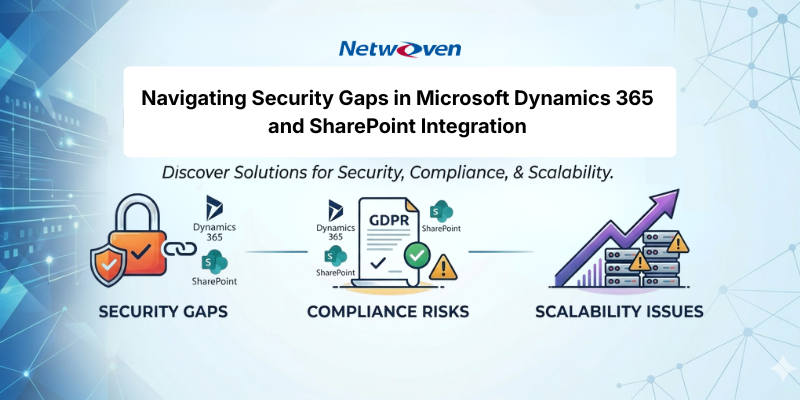
Why users see documents in SharePoint if they don’t have access to the record in Dynamics? This isn’t a rare edge case or a configuration mistake. If you’re using the standard Microsoft integration, this is how the system works by design. The permissions that govern access in Dynamics 365 simply don’t transfer to SharePoint – creating a security vulnerability hiding in plain sight.
Beyond Sales: A Platform-Wide Challenge
While we’ll focus on Dynamics 365 Sales examples in this article, this security gap exists across all Dynamics 365 business applications that use SharePoint integration:
- Field Service – Work order documents, service reports, equipment manuals
- Customer Service – Case attachments, knowledge articles, support documentation
- Project Operations – Project deliverables, contracts, time & expense docs
- Custom Model-Driven Apps – Any Dataverse entity with SharePoint enabled
DIY-minded developers may be asking, “Can I use Power Automate to replicate CRM security roles in SharePoint?” The SharePoint integration is a platform-level capability built into the Power Platform/Dataverse layer. This means the security inheritance gap affects any model-driven app – not just Sales.
Field Service Example:
A technician assigned to West Region work orders may have zero access to East Region work orders in Field Service (enforced by Business Units and Security Roles). But in SharePoint? Those work order folders – containing customer addresses, equipment serial numbers, and proprietary service procedures – may be accessible if the technician is a site member.
For utilities, healthcare equipment services, or government contractors, this isn’t just a security issue – it’s a regulatory compliance risk.
The Bottom Line:
Whether you’re managing sales accounts, service cases, field work orders, or project documents, the architectural challenge is identical. For the rest of this article, we’ll use Sales terminology (accounts, opportunities, Business Units), but the security gap and its implications apply universally across the Dynamics 365 platform.
The Promise (and Reality) of D365-SharePoint Integration
What Microsoft’s OOB Integration Delivers
Microsoft’s server-based SharePoint integration for Dynamics 365 offers genuine benefits:
- Seamless document attachment directly from D365 forms
- Co-authoring capabilities using SharePoint’s collaboration features
- Version control and document lifecycle management
- Familiar interface for users already comfortable with SharePoint
- Automatic folder creation based on entity records
For many organizations, this integration creates exactly what it promises: a unified document management experience that connects CRM processes with enterprise content management.
Where the Promise Breaks Down
The challenge emerges when organizations assume that Dynamics 365’s sophisticated security model automatically extends to SharePoint. It doesn’t.
Here’s what happens in practice:
In Dynamics 365:
- Business Units create security boundaries
- Security Roles define what users can see and do
- Field-Level Security protects sensitive data
- Team-based sharing controls record access
- Owner-based permissions restrict visibility
In SharePoint:
- Site-level permissions (Members, Visitors, Owners)
- Folder-level unique permissions (manually configured)
- Document-level permissions (if explicitly set)
- No inherent connection to D365 Business Units or Security Roles
The two systems operate independently. A user might have zero access to an account in Dynamics 365, but if they’re a SharePoint site member, they can browse to that account’s folder and view every document.
The Security Mismatch: How D365 Permissions Don’t Transfer
Understanding the Architectural Divide
Think of Dynamics 365 as a bank vault where only authorized tellers can access specific safety deposit boxes based on their roles and branch assignments. Now imagine those same boxes being duplicated to a public storage facility where anyone with a general visitor pass can open them.
That’s the security gap.
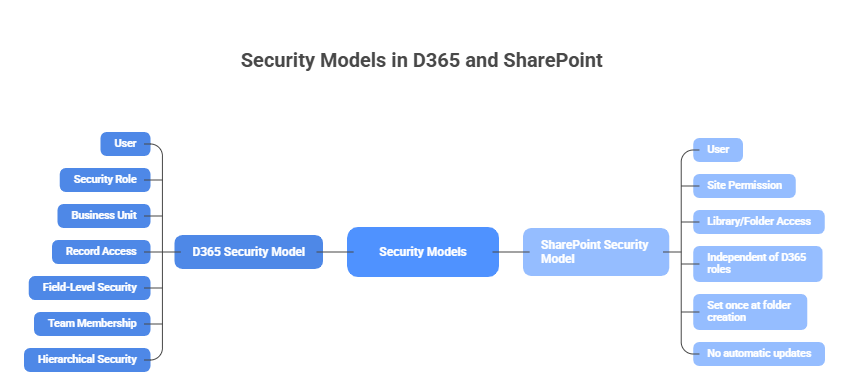
The D365 Security Model:
User → Security Role → Business Unit → Record Access
└─ Field-Level Security
└─ Team Membership
└─ Hierarchical Security
The SharePoint Security Model:
User → Site Permission → Library/Folder Access
└─ Independent of D365 roles
└─ Set once at folder creation
└─ No automatic updates
Real-World Scenario: The Ownership Change
A common question that we have encountered in this regard- “Does the Dynamics 365 ‘Owner’ change automatically update SharePoint folder permissions?“
Consider this common workflow:
- Account created in D365 by West Region sales rep
- SharePoint folder auto-created with default site permissions
- Sales rep uploads confidential client proposals
- Six months later: Account reassigned to East Region (territory realignment)
- In D365: Ownership transferred, West Region loses access immediately
- In SharePoint: Folder permissions unchanged – original rep still has access
The security boundary that D365 enforces automatically? It simply doesn’t exist in SharePoint. The folder permissions were set once, when the folder was created, and they never update.
The Cross-Business Unit Exposure
For organizations with multiple Business Units – regional sales teams, product divisions, subsidiary companies – this creates serious problems:
Scenario: A financial services firm has three divisions:
- Wealth Management (high-net-worth clients)
- Institutional Sales (pension funds, endowments)
- Retail Banking (consumer accounts)
In Dynamics 365, the Business Unit structure ensures that Wealth Management advisors can’t see Institutional Sales accounts. It’s a compliance requirement – Chinese Wall separation.
But in SharePoint? If all three divisions use the same document site (common in OOB setups), the Business Unit boundaries evaporate. A Wealth Management advisor browsing SharePoint could stumble into an Institutional Sales folder – documents they have no D365 access to and no business seeing.
The carefully architected security model simply doesn’t transfer. This leads us to think, “Is there a way to sync D365 Business Unit hierarchy to SharePoint sites?” While the security models don’t align out of the box, a solution does exist. Stay tuned for part two of this series, where we’ll break down the architecture required to replicate your D365 Business Unit structure within SharePoint.
The Scalability Nightmare: SharePoint’s 5,000 Permission Limit
How do I fix the 5,000 unique permission limit in SharePoint for D365 documents?
Beyond security, there’s a performance issue lurking in the architecture.
What Are “Unique Permissions”?
SharePoint manages privacy through unique permissions – individual access controls on specific items (files, folders, libraries). When you break permission inheritance and assign specific users or groups to a folder, that folder consumes one “unique permission.”
Think of unique permissions as individual locks. SharePoint can handle many locks, but there’s a limit.
The 5,000 Threshold: When Performance Degrades
According to Microsoft’s documentation, SharePoint Online can technically support up to 50,000 unique permissions per library. However, Microsoft recommends staying below 5,000 for optimal performance.
Beyond 5,000 unique permissions:
- Folder load times increase (10-30+ seconds)
- Search performance degrades
- Document operations slow down (open, save, share)
- User experience suffers (timeouts, errors)
- Library corruption risk increases
| Unique Permissions | User Experience |
| < 2,000 | ✅ Normal performance |
| 2,000 – 5,000 | ⚠️ Noticeable slowdown |
| 5,000 – 10,000 | 🔴 Severe lag, frequent timeouts |
| > 10,000 | 💥 Library instability, corruption risk |
The Multiplier Effect: How Accounts Scale Exponentially
Here’s where it gets worse. If you’re trying to solve the security problem by applying unique permissions to each account folder, you multiply the problem.
The Math:
Let’s say you want proper security separation. For each account, you need:
- 1 unique permission for the main account folder (restricted to owner’s Business Unit)
- 1 unique permission for the “Legal” subfolder (restricted to Legal team)
- 1 unique permission for the “Investment Banker” subfolder (restricted to IB team)
Total: 3 unique permissions per account
Now calculate the limit:
5,000 unique permissions ÷ 3 permissions per account = 1,666 accounts
Your library hits Microsoft’s recommended threshold at just 1,666 accounts.
For any mid-size or enterprise organization, this is catastrophic. You can’t expand your CRM beyond 1,666 accounts without degrading SharePoint performance. The integration that was supposed to scale with your business has a hard ceiling.
The Performance Crisis
One of our clients experienced this firsthand. Their Dynamics 365 implementation had grown steadily for two years. Then one Monday morning, SharePoint simply… stopped working well.
Users reported timeouts. Folders took 30+ seconds to load. Documents wouldn’t open. The IT team ran diagnostics: server health was normal, network was fine, Microsoft 365 status showed no outages.
The culprit? They’d crossed 5,400 unique permissions. The system had quietly degraded until it reached a breaking point. The solution wasn’t a faster server or more bandwidth. They had to rethink their entire document structure – while frustrated users waited for access to critical client files.
The Compliance Ticking Time Bomb
How does the D365-SharePoint gap affect HIPAA and GDPR compliance?
For regulated industries, this isn’t just an IT inconvenience – it’s an audit liability.
GDPR’s “Appropriate Security” Requirement
GDPR Article 32 requires organizations to implement “appropriate technical and organizational measures to ensure a level of security appropriate to the risk.”
When auditors ask: “How do you ensure that only authorized personnel can access customer data?”
The answer cannot be: “We secure it in Dynamics 365, but the documents in SharePoint use site-level permissions that we update manually when we remember.”
That’s a control deficiency. And control deficiencies lead to audit findings, remediation requirements, and in severe cases, regulatory fines.
HIPAA’s Minimum Necessary Standard
HIPAA § 164.514(d) requires covered entities to limit access to protected health information to the “minimum necessary” to accomplish the intended purpose.
If a physician’s Dynamics 365 access is restricted to their assigned patients, but the SharePoint folders containing those patients’ medical records are accessible to anyone in the department, that’s a HIPAA violation waiting to be discovered.
SOC 2 Access Control Requirements
SOC 2 CC6.1 (Common Criteria 6.1) requires organizations to implement logical access controls that restrict access to system resources to authorized users.
Auditors will test whether your access controls are:
- Designed effectively (policy matches implementation)
- Operating effectively (controls work as intended)
- Consistently applied (no gaps between systems)
If your D365 security design is rigorous but SharePoint permissions are ad-hoc, you fail criterion #3. The gap between your stated policy and actual implementation is evidence of a control weakness.
The Compliance Table
| Regulation | Requirement | OOB Integration Status |
| GDPR Article 32 | “Appropriate security measures” | ❌ Creates permission gaps |
| HIPAA § 164.514(d) | Minimum necessary access | ❌ Overly broad SharePoint access |
| SOC 2 CC6.1 | Logical access controls | ⚠️ Inconsistent between D365/SharePoint |
| FINRA Rule 4511 | Record retention with access controls | ❌ No audit trail of permission changes |
| ISO 27001 A.9.4 | System access control | ⚠️ Manual processes, human error risk |
Why Manual Workarounds Don’t Scale
Faced with this problem, most organizations try one of these approaches:
Approach 1: Manual Permission Updates
The idea: Have IT manually update SharePoint folder permissions whenever account ownership changes in D365.
Why it fails: – Requires someone to remember to do it – No automated trigger when ownership changes – Time-consuming (5-10 minutes per account) – Human error inevitable (forgotten updates, wrong permissions) – No audit trail of who changed what when
Real cost: For an organization with dozens of ownership changes per month, that’s hours of manual IT work weekly – often equivalent to a part-time FTE annually – with frequent mistakes.
Approach 2: Restrict All SharePoint Access
The idea: Make everyone a SharePoint “Visitor” (read-only) and manually grant access on request.
Why it fails: – Defeats the purpose of SharePoint collaboration – Creates bottleneck (IT becomes gatekeeper) – Users frustrated by access delays – Doesn’t scale (imagine 200 access requests/month)
Real cost: Lost productivity, user frustration, abandoned integration.
Approach 3: Separate Libraries Per Record
The idea: Create a dedicated SharePoint library for each major account.
Why it fails: – Library proliferation (thousands of libraries) – Harder to manage and navigate – Still hits the 5,000 unique permission limit if you have subfolders with unique permissions – Breaks SharePoint site structure and search
Real cost: Unmanageable sprawl, still doesn’t solve the core problem.
Approach 4: Use OneDrive Instead
The idea: Store documents in users’ OneDrive rather than shared SharePoint.
Why it fails: – Loses collaborative benefits (co-authoring, shared workflows) – No centralized governance – Version control issues – Documents tied to individual accounts (what happens when employee leaves?) – Violates compliance requirements for centralized record retention.
Real cost: Compliance risk, loss of collaboration, document chaos.
None of these workarounds address the root problem: Dynamics 365 and SharePoint have fundamentally different security models, and the out-of-the-box integration doesn’t bridge them.
The Hidden Costs of the Security Gap
Let’s quantify what this problem actually costs organizations: Annual
Cost Breakdown
| Cost Category | Typical Impact Level |
| IT manual permission updates | 🔴 High (equivalent to 0.5-1.0 FTE) |
| Security audit findings remediation | 🔴 High (external consultants, documentation, remediation) |
| User productivity loss (slow SharePoint) | 🟡 Medium-High (hours per user annually) |
| Compliance risk exposure | 🔴 Critical (GDPR fines up to 4% revenue) |
| Access request bottlenecks | 🟡 Medium (help desk time, user delays) |
| Document access errors | 🟡 Medium (wrong file versions, compliance issues) |
| TOTAL QUANTIFIABLE COST | Six figures annually for mid-size enterprises |
This doesn’t include: – Opportunity cost of not fully utilizing SharePoint collaboration – Reputational risk of data exposure incidents – Regulatory fines if compliance gaps are discovered – Customer trust impact if confidential data is improperly accessed.
What You Need to Know
If you’re using Dynamics 365 with SharePoint integration, here are the critical takeaways:
1. The Security Inheritance Gap is Real
✋ Microsoft’s OOB integration does NOT automatically sync permissions between D365 and SharePoint. Business Units, Security Roles, and Field-Level Security in Dynamics 365 have no equivalent enforcement in SharePoint.
Action: Audit your current SharePoint permissions against your D365 security model. You may be surprised by the gaps.
2. The 5,000 Unique Permission Limit is a Scalability Wall
📊 If you attempt to secure SharePoint folders with unique permissions, you’ll hit Microsoft’s recommended limit at 1,666 accounts (assuming 3 permissions per account).
Action: Calculate your current unique permissions: – Go to SharePoint library settings – Check number of folders with broken inheritance – Multiply by subfolders with unique permissions – Compare to 5,000 threshold
3. Manual Workarounds Are Expensive and Error-Prone
⚠️ Manual permission updates can cost a lot and still leave security gaps due to human error and forgotten updates.
Action: Document the true cost of manual processes in your organization (IT hours, user delays, audit findings).
4. Compliance Risks Are Measurable and Urgent
⚖️ Auditors will ask for proof that SharePoint access controls match your stated data governance policies. If you can’t demonstrate synchronized permissions, it’s a finding.Action: Review recent audit reports. If SOC 2, ISO 27001, or regulatory audits flagged access control gaps, this may be the root cause.
What Comes Next
So how do enterprise organizations solve this? How do you achieve:
- Zero-trust security synchronization (D365 permissions mirror in SharePoint automatically)
- Infinite scalability (no 5,000 unique permission bottleneck)
- 100% automation (zero manual intervention, even for ownership changes)
- Full compliance (auditable, documented, GDPR/HIPAA/SOC 2 aligned)
In Part 2 of this series, we’ll reveal the architectural blueprint that we developed for a regulated financial services firm – a solution that uses Azure Functions, custom Dynamics 365 plugins, and algorithmic distribution to create a secure, scalable bridge between the two platforms.
You’ll learn:
- The 3-zone architecture that synchronizes permissions in real-time
- How alphabetical distribution mathematically eliminates the 5,000 limit
- The Business Unit mapping strategy that mirrors D365 security in SharePoint
- The automated governance model that handles ownership changes without manual intervention
- Real implementation results (cost savings, audit outcomes, performance metrics)
👉Don’t Miss Part 2
Read the Part 2 to learn about the solution.
Or if you’re facing this challenge right now and can’t wait:
📅 Schedule a 30-minute architecture consultation. We’ll review your current D365-SharePoint setup and identify specific security gaps and scalability risks.