Introduction
Welcome to the second blog in our series. If you haven’t read the first one yet—“Why Your Microsoft 365 Storage Bill Keeps Growing And What You Can Do About It”—start there.
The biggest objection to archival projects isn’t about cost. It’s about disruption. IT teams know that the moment users can’t find a file they expect to be in SharePoint, the helpdesk tickets start arriving.
But a well-designed archival framework doesn’t ask users to compromise. The goal isn’t just to move files — it’s to move them in a way that no one really notices, while saving significant money and meeting every compliance requirement.
The Architecture of Invisible Archival
When a file is archived, three things happen under the hood:
| Step 1 — Move | The file is copied to lower-cost Azure Blob or Data Lake Storage. This is where the cost savings originate. |
| Step 2 — Replace | The original file in SharePoint is replaced with a shortcut link — same file name, same folder, same permissions. |
| Step 3 — Index | The shortcut is indexed so SharePoint search continues to surface the file and users can preview it directly. |
The only time the experience changes is if a user needs to edit the file. At that point, they submit a restore request, the file is returned to SharePoint with full metadata and version history intact, and they proceed as normal.
Netwoven’s Role: Solution Architecture & Azure Setup
- Netwoven designs and deploys the complete archival architecture on Azure — Azure Blob Storage, Data Lake, and all supporting infrastructure — configured to your organisation’s security and compliance requirements.
- The solution is built on Netwoven’s proven Microsoft 365 Archive platform, which has been deployed across enterprises of all sizes and is aligned with Microsoft’s recommended archival patterns.
- Netwoven configures the SharePoint shortcut integration, ensuring that every archived file remains visible in its original library with correct permissions, metadata, and version history intact.
- Azure access requests, resource provisioning, and environment validation are all handled by Netwoven’s technical team during the onboarding phase — typically completed within the first two weeks of engagement.
Every Archived File Stays Alive in SharePoint
One of the most important design principles of this archival solution is that archiving a file does not remove it from the user’s working environment. The file stays exactly where it was — visible in the same SharePoint library, same name and folder — but is now represented by a smart shortcut wired to the archived content in Azure storage.
This shortcut is not a dead link. It is an active, feature-rich reference that supports two immediate user actions directly from SharePoint.
Action 1: Preview the Archived File Instantly
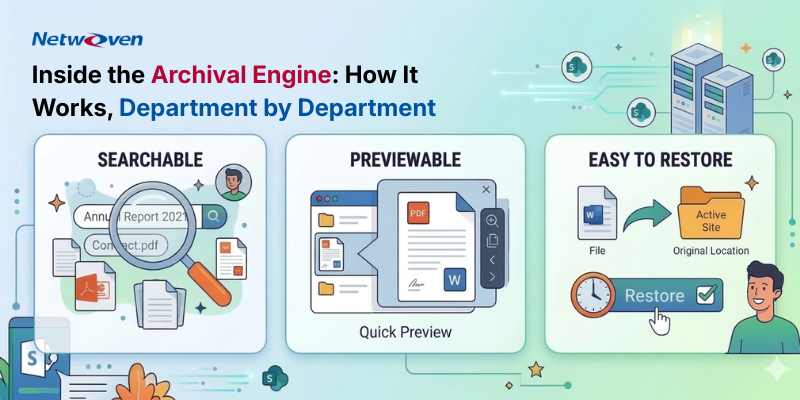
Every archived shortcut in SharePoint includes a built-in preview capability. Users can click on any archived file and open a full read-only preview directly within SharePoint — no restore required, no waiting, no ticket to raise.
Instant Preview from SharePoint
Click any archived file link in a SharePoint library. The file renders in a read-only preview pane — documents, spreadsheets, PDFs, and presentations all supported. Content is fetched directly from Azure archive storage and displayed inline, exactly as it existed at the time of archival.
This means that for the vast majority of archived content — files users need to read, reference, or share but not edit — the experience is completely seamless. Compliance officers reviewing old policy documents, managers checking historical reports, or colleagues looking up a past project brief can all do so immediately without any IT involvement.
Action 2: Raise a Restore Request in One Click
When a user needs to edit an archived file, they can raise a restore request directly from the SharePoint shortcut. The request is triggered in a single click from the same location where the file appears.
One-Click Restore Request
Right-click or select the archived file shortcut and choose “Request Restore.” Enter a brief reason, and the request is logged in the admin dashboard with the requester’s identity, file details, and timestamp. Once approved, the file is returned to its original SharePoint location with full metadata, permissions, and version history intact.
Every request is recorded. Admins can see who requested what, why, and when. Approvals can be automated based on policy or require manual sign-off for sensitive content areas.
The Shortcut in Practice: What Users See
| User Type | Action | What Happens |
| Any team member | Clicks an archived file in SharePoint | File opens instantly in read-only preview — no IT required |
| Analyst / Reviewer | Needs to reference a 3-year-old report | Previews it in 2 clicks, shares the link with a colleague |
| Project Manager | Needs to update an archived template | Clicks “Request Restore,” enters reason, file is back in minutes |
| Compliance Officer | Auditing a document’s version history | Previews archived version; requests specific version if needed |
| Site Owner | Checking what’s been archived on their site | Sees all archived shortcuts in-place; can preview or restore any file |
Search Archived Content with Microsoft 365 Copilot
NEW: With the Microsoft 365 Copilot Connector integration, archived files are not just searchable — they are fully discoverable through natural language queries in Copilot, just like any active SharePoint document.
Most archival solutions create a search dead end: once a file is archived, it disappears from Copilot’s knowledge base. This solution is different. The Copilot Connector bridges the archive store and Microsoft 365 Copilot, keeping archived content fully indexed and conversationally accessible.
| Natural Language Search | Ask Copilot “Find the Q3 2021 sales forecast” or “Summarise the HR policy from two years ago” and receive accurate results from archived files. |
| Permission-Aware | Copilot only surfaces archived files the user is authorised to access. Archive permissions are mirrored exactly from SharePoint. |
| Inline Preview | Copilot results for archived files include a direct preview link. Clicking it opens the file in the same read-only preview mode available from the SharePoint shortcut. |
| Restore from Copilot | If a user finds an archived file via Copilot and needs to edit it, they can raise a restore request from within the Copilot response panel. |
Knowledge Worker Scenarios
- Legal teams asking Copilot to find all contracts related to a specific vendor will surface archived contracts alongside active ones — with no difference in discoverability.
- Finance analysts asking Copilot to pull historical budget data across multiple years will get complete results, even for years whose files have been archived.
- Senior leaders asking Copilot to summarise strategic planning documents from the past five years will receive a comprehensive answer spanning both active and archived content.
- HR managers asking Copilot to locate a former employee’s onboarding documentation will find it instantly, even if archived under a 10-year retention policy years ago.
Netwoven’s Role: Microsoft Search & Copilot Connector Configuration
- Netwoven configures the Microsoft Graph connector that registers the archive storage as a trusted content source within Microsoft 365, enabling Copilot to query archived files alongside active SharePoint content.
- Netwoven’s Microsoft Search of Archive capability is a built-in component of the M365 Archive solution — users can search for content in the archive directly from Microsoft Search without any separate tool or interface.
- Permission synchronisation is handled automatically: Netwoven ensures that archive index permissions mirror SharePoint access controls exactly, so Copilot never surfaces content a user is not authorised to see.
- Netwoven also configures Microsoft eDiscovery (Purview) integration on the archive, enabling compliance teams to run litigation holds and eDiscovery queries across archived content from the same interface they use for active SharePoint.
How Policies Work in Practice
The policy engine is where archival becomes a managed, scalable process. Policies operate in a two-tier hierarchy:
Tenant-Wide Baseline Policy
Sets the universal rule across the entire tenant. Typical example: archive any file not modified in the past 7 years. Runs on a defined schedule with no ongoing manual intervention required.
Department-Level Override Policies
Handle the exceptions every organisation has. These take precedence over the tenant baseline for their designated sites.
| Department | Typical Archive Rule | Rationale |
| Human Resources | Archive after 10 years | Employment records, extended retention requirements |
| Legal & Compliance | Archive after 10–15 years | Litigation holds, regulatory records |
| Finance | Archive after 7 years | SOX, audit records, financial reporting |
| Marketing | Archive after 3–5 years | Campaign assets, short active lifecycle |
| IT & Operations | Archive after 5 years | Runbooks and configs superseded frequently |
| Project Management | Archive 90 days post-closure | Large working file volumes, predictable end-of-life |
Netwoven’s Role: Policy Design & Configuration
- Netwoven facilitates structured policy workshops with each department to define archival and purge rules that reflect actual retention obligations and business workflows — not just IT assumptions.
- Both one-step automated archival and two-step approval workflows are supported. Netwoven configures the disposition dashboard where department admins review and approve archival batches before execution.
- Override policy configuration is handled by Netwoven’s team, ensuring that department-level rules are correctly scoped and take precedence over the tenant baseline without conflict.
- Netwoven also configures automated purge policies for content that has exceeded its full retention period — ensuring that data is not kept longer than required by policy or regulation.
The On-Demand Use Case: When Policy Isn’t Enough
Policy-based archival handles the systematic, recurring work. On-demand archival gives site owners the ability to archive content manually without waiting for the next policy run.
- Project Closeout: Archive gigabytes of working files immediately when a project wraps. Storage reclaimed, files remain accessible via shortcut and preview.
- Seasonal Content Cycles: Retailers, event businesses, and academic institutions can bulk-archive period-specific content after the season ends.
- Department Reorganisations: When teams merge or dissolve, on-demand archival provides a clean resolution for their SharePoint sites.
- Pre-Audit Cleanup: Close policy gaps quickly before a compliance audit by archiving legacy sites that haven’t yet been processed.
Netwoven’s Role: Bulk Archival & On-Demand Execution
- Netwoven offers a dedicated bulk archival service for organisations with large volumes of legacy content requiring immediate migration — including up to 5 TB of data processed in a focused, time-boxed engagement.
- SharePoint Online Archive enables site owners to archive, preview, download, restore, and purge files directly within the SharePoint Online experience, thanks to Netwoven’s seamless integration—without switching tools.
- Netwoven’s bulk archival automation handles mass migrations of content into SharePoint while simultaneously retaining, archiving, and purging content using defined rules, without interrupting regular lifecycle automation.
- Post-execution, Netwoven provides a full archival report documenting what was archived, from which sites, under which policies, and what storage was reclaimed.
The Cost Picture at Operating Scale
| Storage Volume | SharePoint Premium | Archive Storage | Monthly Savings |
| 10 TB overage | ~$2,000/mo | ~$330/mo | ~$1,670/mo |
| 50 TB overage | ~$10,000/mo | ~$1,650/mo | ~$8,350/mo |
| 100 TB overage | ~$19,500/mo | ~$3,300/mo | ~$16,200/mo |
The savings are real, immediate, and compound as data volumes grow. And with the Copilot Connector ensuring that archived content remains fully searchable and previewable, those savings come with zero reduction in knowledge worker productivity.
Want clarity on your road to success and savings? Contact our team to get started.
Next in this series: Blog 3 — From IT Project to Enterprise Strategy: Deploying Archival That Sticks