Recap: The Challenge We’re Solving
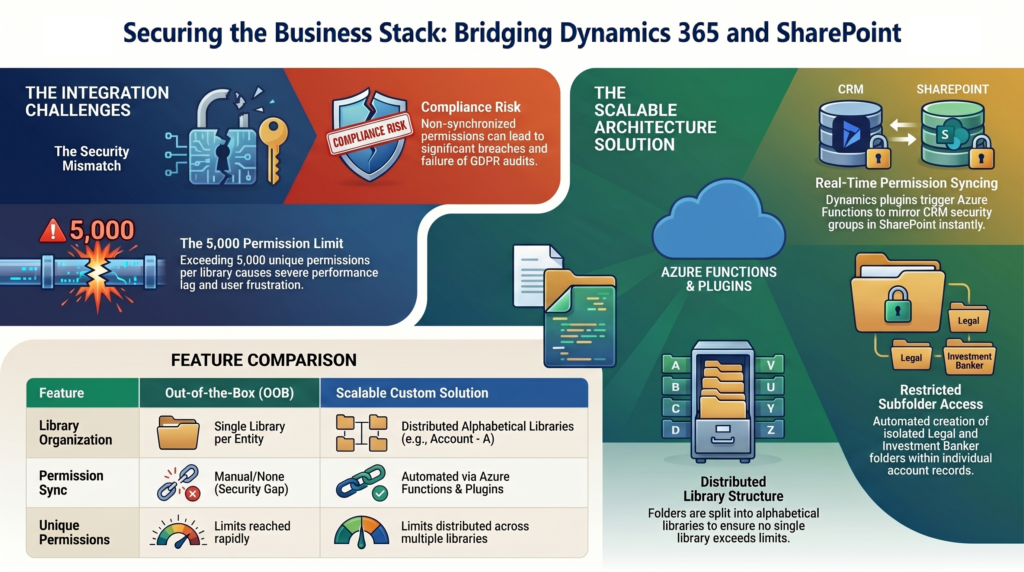
In Part 1 of this series, we exposed the hidden security gap in Microsoft’s out-of-the-box Dynamics 365 – SharePoint integration:
❌ The Security Inheritance Gap – D365 Business Units and Security Roles don’t transfer to SharePoint
❌ The 5,000 Permission Limit – Unique permissions per library cap scalability at ~1,666 accounts
❌ The Manual Workaround Trap – Manual permission updates can cost six figures annually and still fail
❌ The Compliance Time Bomb – Audit findings, regulatory risk, GDPR violations
When a regulated financial services client approached us with exactly these challenges, they presented a clear set of requirements:
Their Situation:
- 4,200+ active accounts (growing 15% annually)
- 3 unique permissions needed per account (main folder + Legal subfolder + Investment Banker subfolder)
- Total permission requirement: 12,600+ (more than 2× Microsoft’s recommended limit) – Strict regulatory oversight (FINRA, SEC, GDPR compliance)
- Zero tolerance for manual processes or permission drift
The Question:
How do we build a bridge between Dynamics 365 and SharePoint that’s both secure AND scalable?
This article reveals the architectural solution we designed, implemented, and deployed for enterprise clients.
Design Principles: Our Three Pillars
Before diving into the technical architecture, we established three non – negotiable design principles:
1. Zero – Trust Synchronization
Principle: Security defined in Dynamics 365 must be the single source of truth. SharePoint permissions should mirror D365 in real – time – not eventually, not manually, but instantly.
What this means:
- When an account is created in D365, its SharePoint folder inherits permissions based on the owner’s Business Unit
- When ownership changes in D365, SharePoint permissions update automatically within seconds
- When a user’s Business Unit changes, all their record permissions refresh in SharePoint – No manual intervention, no scheduled jobs, no permission drift
2. Algorithmic Distribution
Principle: Instead of fighting the 5,000 unique permission limit, we mathematically distribute folders across multiple libraries to ensure no single library ever approaches the threshold.
What this means:
- Rather than one massive “Account” library, we create 26 libraries: “Account Documents – A”, “Account Documents – B”, …, “Account Documents – Z”
- Records are routed algorithmically based on their name (e.g., “Acme Corp” → “Account Documents – A”)
- Each library holds ~1/26th of the records, keeping unique permissions well below 5,000
- If a single letter exceeds the limit, we can subdivide by year (“Account Documents – A 2024”, “Account Documents – A 2025”)
The math:
Example scenario:
26 libraries × ~1,666 accounts per library = ~43,000 total account capacity
For most organizations, this provides virtually unlimited headroom.
3. Invisible Automation
Principle: Users should never know the complexity behind the scenes. Create an account in D365, and the secure SharePoint structure appears automatically – no clicks, no delays, no awareness required.
What this means:
- No user training required (“just use Dynamics 365 like always”)
- No manual “create SharePoint folder” buttons
- No waiting for IT to provision access
- The system works invisibly in the background
These three principles guided every architectural decision that followed.
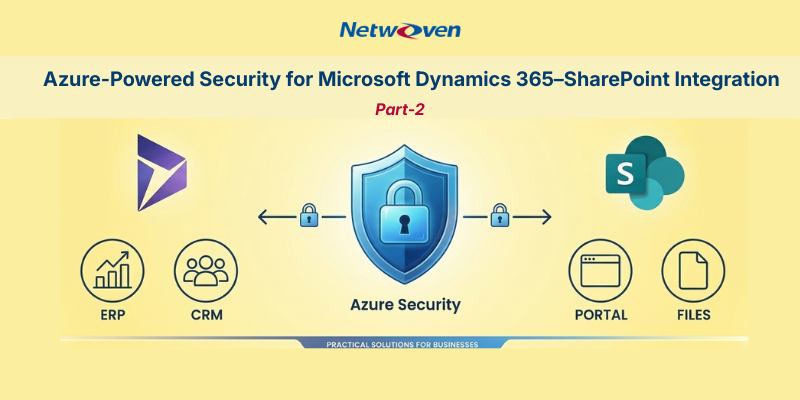
The 3 – Zone Architecture
Our solution operates across three zones, each with a specific responsibility:

Let’s walk through each zone.
Zone 1: The Dynamics 365 Trigger
How It Works
Custom Dynamics 365 plugins monitor specific entities for creation and update events. When triggered, they securely pass record metadata to Azure Functions for processing.
Monitored Entities
For our financial services client, we configured plugins for:
- account (Sales)
- nw_livedeal (custom entity: live deals/opportunities)
- nw_subscriptions (custom entity: subscription agreements)
- nw_ibdeal (custom entity: investment banking deals)
The same plugin pattern works across all Dynamics 365 business applications:
Because SharePoint integration is a platform – level capability built into Power Platform/Dataverse, this architecture applies universally – not just to Sales. The plugin configuration simply changes the entity logical name and column names; the core architecture remains identical.
Examples across D365 apps:
| Dynamics 365 App | Entity Logical Name | Example Use Case |
| Field Service | msdyn_workorder | Work order documents, service reports, equipment manuals |
| Customer Service | incident | Case attachments, knowledge articles, support docs |
| Project Operations | msdyn_project | Project deliverables, contracts, time & expense documents |
| Custom Model – Driven Apps | Any custom entity | Business – specific records with document requirements |
Key Point: The security gap we solved for Sales exists identically in Field Service, Customer Service, and any other Dataverse – based app. A Field Service technician restricted to West Region work orders in D365 may still access East Region work order folders in SharePoint – unless you implement this permission synchronization architecture.
Our solution’s reusability is a core strength: deploy once, configure per entity, secure automatically across your entire Dynamics 365 ecosystem.
Trigger Conditions
The plugins activate when:
Scenario 1: Record Creation
- New record created
- Field nw_EnableD365SPDocInt = true
Scenario 2: Ownership Change
- Existing record updated
- Field ownerid value changed (comparing PreImage vs. PostImage)
- Field nw_EnableD365SPDocInt = true
The Payload
When triggered, the plugin securely passes this payload to the Azure Function:
{
“recordType”: “account”,
“recordId”: “a1b2c3d4 – e5f6 – 7890 – abcd – ef1234567890”,
“recordName”: “Acme Corporation”,
“recordIdColumnName”: “accountid”
}
Security Measures
- Function Key Authentication: Azure Function URL requires a function key (stored in D365 secure configuration)
- System Authorization Key: Additional SysAuthKey parameter validates the request source
- No sensitive data in payload: Only record metadata, no customer PII or financial data
- Async execution: Runs post – operation to avoid blocking D365 transaction
Plugin Configuration Example
Unsecure Configuration:
{
“AzureFunctionUrl”: “https://{azure-function-name}.azurewebsites.net”,
“EntityLogicalName”: “account”,
“RecordNameColumnName”: “name”,
“UniqueIdentifierColumnName”: “accountid”
}
Secure Configuration:
{
“FunctionKey”: “[Azure Function Key]”,
“SysAuthKey”: “[System Authorization GUID]”
}
This configuration makes the plugins reusable across entities – just change the entity logical name and column names, no code changes required.
Zone 2: The Automated Librarian (Azure Functions)
The Azure Function acts as an intelligent orchestrator, executing a four – step process:
Step 1: Validate Library Exists
Goal: Determine which SharePoint library should hold this record’s documents.
Process:
// Extract starting letter from record name
var startingLetter = recordName.Substring(0, 1).ToUpper();
// Determine library name
var libraryTitle = $”Account Documents – {startingLetter}”;
var libraryName = $”AccountDocuments{startingLetter}”; // Internal name
// Check if library exists in SharePoint
var library = context.Web.Lists.GetByTitle(libraryTitle);
context.Load(library);
context.ExecuteQuery(); // Will throw if not found
// If library doesn’t exist, create it
if (library == null) {
var creationInfo = new ListCreationInformation {
Title = libraryName,
TemplateType = (int)ListTemplateType.DocumentLibrary
};
library = context.Web.Lists.Add(creationInfo);
library.Title = libraryTitle;
library.Update();
context.ExecuteQuery();
}
Result: We now have a confirmed library: “Account Documents – A”
Step 2: Generate Document Location in D365
Goal: Create a SharePoint Document Location record in Dynamics 365 that links to this library.
Why this matters: D365 needs a Document Location record to know where to store/retrieve documents for this record.
Process:
// Create D365 SharePoint Document Location for the library (if not exists)
var locationEntity = new Entity(“sharepointdocumentlocation”);
locationEntity[“name”] = libraryTitle;
locationEntity[“relativeurl”] = libraryName;
locationEntity[“parentsiteorlocation”] = new EntityReference(“sharepointsite”, siteId);
var locationId = dataverseService.Create(locationEntity);
Result: D365 now knows about “Account Documents – A” library.
Step 3: Build Folder Structure
Goal: Create the record’s folder and any required subfolders in SharePoint.
Process:
3a. Create Main Folder
// Sanitize record name for folder creation (remove invalid characters)
var folderName = SanitizeRecordName(recordName); // “Acme Corporation”
// Create folder in the library
var folder = library.RootFolder.Folders.Add(folderName);
context.ExecuteQuery();
3b. Create Subfolders (for accounts only)
Based on configuration (e.g., AccountSubfoldersConfig), we create restricted subfolders:
if (recordType == “account”) {
// Create “Legal” subfolder
var legalFolder = folder.Folders.Add(“Legal”);
context.ExecuteQuery();
// Create “Investment Bankers” subfolder
var ibFolder = folder.Folders.Add(“Investment Bankers”);
context.ExecuteQuery();
}
3c. Create D365 Document Locations for Each Folder
// Main folder location
var mainLocation = new Entity(“sharepointdocumentlocation”);
mainLocation[“name”] = $”Documents @ {recordName}”;
mainLocation[“relativeurl”] = folderName;
mainLocation[“parentsiteorlocation”] = new EntityReference(“sharepointdocumentlocation”, libraryLocationId);
mainLocation[“regardingobjectid”] = new EntityReference(“account”, recordId);
var mainLocationId = dataverseService.Create(mainLocation);
// Legal subfolder location
var legalLocation = new Entity(“sharepointdocumentlocation”);
legalLocation[“name”] = “Legal”;
legalLocation[“relativeurl”] = “Legal”;
legalLocation[“parentsiteorlocation”] = new EntityReference(“sharepointdocumentlocation”, mainLocationId);
legalLocation[“regardingobjectid”] = new EntityReference(“account”, recordId);
dataverseService.Create(legalLocation);
// Repeat for “Investment Bankers” subfolder…
Result: SharePoint folder structure exists, and D365 knows about each location.
Step 4: Enforce Security Locks
Goal: Break permission inheritance and apply precise permissions based on D365 security model.
This is where the zero – trust synchronization happens.
4a. Query D365 for Business Unit Security Group
// Fetch account owner’s Business Unit and mapped Entra ID security group
var fetchXml = @”
<fetch>
<entity name=’account’>
<link-entity name=’systemuser’ from=’systemuserid’ to=’ownerid’>
<attribute name=’internalemailaddress’ alias=’owneremail’ />
<link-entity name=’businessunit’ from=’businessunitid’ to=’businessunitid’>
<link-entity name=’nw_BUEntraGroupMapping’
from=’nw_businessunit’ to=’businessunitid’>
<attribute name=’nw_groupemail’ alias=’groupemail’ />
</link-entity>
</link-entity>
</link-entity>
</entity>
</fetch>”;
var results = dataverseService.RetrieveMultiple(new FetchExpression(fetchXml));
var ownerEmail = results[“owneremail”];
var buGroupEmail = results[“groupemail”]; // e.g., “west – region – sales@company.com”
Key Table: nw_BUEntraGroupMapping
This custom table maps D365 Business Units to Entra ID (Azure AD) security groups:
| Business Unit | Entra ID Group Email |
| West Region Sales | west – region – sales@company.com |
| East Region Sales | east – region – sales@company.com |
| Legal Department | legal – team@company.com |
| Investment Banking | investment – bankers@company.com |
4b. Break Permission Inheritance on Main Folder
// Load the folder’s ListItem
var folderItem = folder.ListItemAllFields;
context.Load(folderItem, item => item.HasUniqueRoleAssignments);
context.ExecuteQuery();
// Break inheritance (don’t copy existing permissions, keep admin access)
if (!folderItem.HasUniqueRoleAssignments) {
folderItem.BreakRoleInheritance(false, true);
context.ExecuteQuery();
}
4c. Remove All Existing Permissions
// Remove all role assignments (start from clean slate)
context.Load(folderItem.RoleAssignments);
context.ExecuteQuery();
while (folderItem.RoleAssignments.Count > 0) {
var assignments = folderItem.RoleAssignments.ToList();
foreach (var assignment in assignments) {
assignment.DeleteObject();
context.ExecuteQuery();
}
}
4d. Grant Permissions to Authorized Users/Groups
// Get “Contribute” role definition
var roleDefinition = context.Web.RoleDefinitions.GetByName(“Contribute”);
// Grant access to record owner
var ownerPrincipal = context.Web.EnsureUser(ownerEmail);
var ownerBindings = new RoleDefinitionBindingCollection(context);
ownerBindings.Add(roleDefinition);
folderItem.RoleAssignments.Add(ownerPrincipal, ownerBindings);
context.ExecuteQuery();
// Grant access to Business Unit security group
var buPrincipal = context.Web.EnsureUser(buGroupEmail);
var buBindings = new RoleDefinitionBindingCollection(context);
buBindings.Add(roleDefinition);
folderItem.RoleAssignments.Add(buPrincipal, buBindings);
context.ExecuteQuery();
Result: Main folder is now accessible ONLY to: – The account owner (individual user) – The owner’s Business Unit security group (team access)
All other users are blocked – even if they’re SharePoint site members.
4e. Lock Down Subfolders
// Legal subfolder: Accessible ONLY to Legal team
var legalFolderItem = legalFolder.ListItemAllFields;
legalFolderItem.BreakRoleInheritance(false, true);
context.ExecuteQuery();
// Remove all permissions
// (same process as main folder)
// Grant access ONLY to Legal team security group
var legalPrincipal = context.Web.EnsureUser(“legal – team@company.com”);
var legalBindings = new RoleDefinitionBindingCollection(context);
legalBindings.Add(roleDefinition);
legalFolderItem.RoleAssignments.Add(legalPrincipal, legalBindings);
context.ExecuteQuery();
// Repeat for “Investment Bankers” subfolder…
Result: Subfolders have even more restricted access. General Business Unit users cannot even see that “Legal” or “Investment Bankers” folders exist.
The Complete Permission Model
After Azure Function execution:
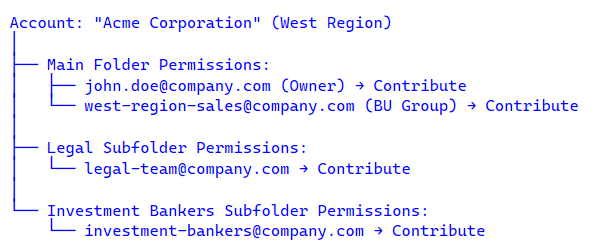
Important: Regular West Region users can access the main folder but cannot see Legal or IB subfolders. Only members of the Legal/IB security groups can access those.
Zone 3: The Distributed Library Structure
Alphabetical Distribution in Action
Instead of this (OOB approach):
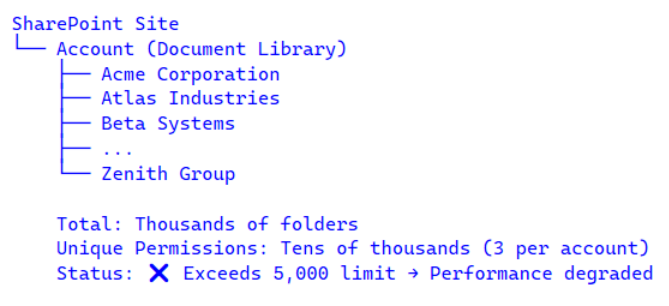
We create this:
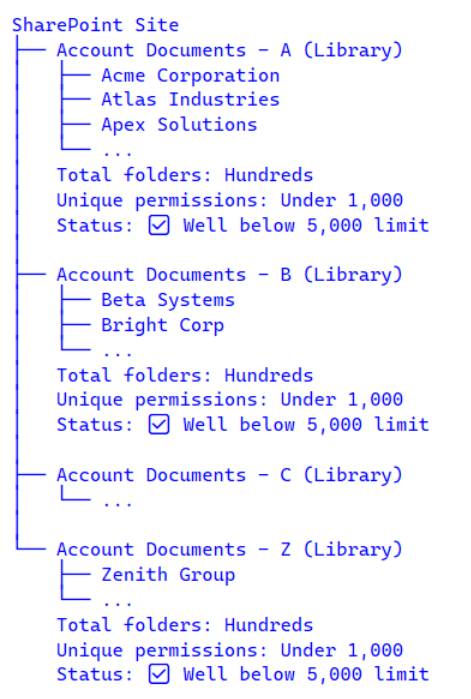
Result: No single library ever approaches the 5,000 unique permission threshold. Performance remains optimal even with 40,000+ accounts.
Future Scalability
If a single letter’s library approaches the limit (e.g., “Account Documents – A” reaches 4,500 unique permissions), we can subdivide:
Account Documents – A 2024
Account Documents – A 2025
Account Documents – A 2026
The algorithmic routing simply includes year logic:
var year = recordCreatedOn.Year;
var libraryName = $”Account Documents-{startingLetter} {year}”;
This provides virtually unlimited scalability while maintaining optimal SharePoint performance.
Real – Time Sync: The Ownership Change Handler
Security isn’t a one – time event. When account ownership changes – employee leaves, territory reassignment, promotion – SharePoint permissions must update instantly.
The Challenge
Scenario:
- Account “Acme Corporation” owned by John Doe (West Region)
- SharePoint folder permissions: John + West Region Security Group
- Account reassigned to Jane Smith (East Region)
- What should happen: SharePoint permissions update to Jane + East Region Group
- What OOB does: Nothing (permissions frozen)
Our Solution
The same plugin (RecordToSPPermRepPlugin) monitors the ownerid field:
// Compare PreImage (before update) vs. PostImage (after update)
var preOwnerId = preImage.GetAttributeValue<EntityReference>(“ownerid”).Id;
var postOwnerId = postImage.GetAttributeValue<EntityReference>(“ownerid”).Id;
if (preOwnerId != postOwnerId && isSharePointEnabled) {
// Owner changed → Call Azure Function to refresh permissions
CallPermissionReplicationAzureFunction(payload);
}
The Refresh Process
Azure Function:
- Queries new owner’s Business Unit and mapped security group
- Loads the SharePoint folder
- Removes old owner + old BU security group from permissions
- Adds new owner + new BU security group to permissions
- Preserves Legal/IB subfolder permissions (they’re group – based, not owner – specific)
Execution time: 3 – 7 seconds
Result: Permissions refreshed automatically. No manual intervention. Zero permission drift.
Implementation Highlights
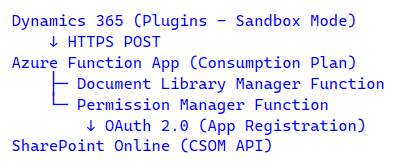
Technology Stack
- Dynamics 365 Plugins: .NET 4.6.2, Dynamics 365 SDK 9.x
- Azure Functions: .NET 8 (Isolated Worker), HTTP Triggers, Consumption Plan
- SharePoint Access: CSOM (Client – Side Object Model)
- Authentication: Managed Identity + App Registration (OAuth 2.0)
- Configuration Management: Azure App Configuration
- Secrets Management: Azure Key Vault
- Logging: Application Insights
Deployment Architecture
Security Measures
- No hardcoded credentials – Managed Identity for Azure resources, App Registration for SharePoint
- API authentication – SysAuthKey validates request origin
- Function keys – Stored in D365 Secure Configuration, never in code
- Audit logging – All permission changes logged to Application Insights
- Idempotent operations – Safe to retry on transient failures
- Principle of least privilege – Azure Function has minimum required SharePoint permissions
Performance Characteristics
| Operation | Average Time |
| Create new account structure | 5 – 8 seconds |
| Update permissions (ownership change) | 3 – 5 seconds |
| Bulk folder creation (100 accounts) | ~10 minutes (batched) |
| SharePoint folder load time | < 2 seconds (optimal) |
Results: A Client Success Story
After deploying this solution for our financial services client, the results were transformative:
Before Our Solution
❌ Manual permission updates: Dozens of hours monthly
❌ Audit findings: Multiple SOC 2 critical findings related to access controls
❌ Scalability blocked: Couldn’t expand beyond a couple thousand accounts
❌ User complaints: SharePoint timeouts, slow folder loads
❌ Compliance risk: No automated sync between D365 and SharePoint
❌ Permission drift: Significant percentage of folders had outdated permissions
After Our Solution
✅ 100% automated permission sync – Zero manual updates required
✅ Clean audits: Multiple consecutive clean SOC 2 audits with zero access control findings
✅ Infinite scalability: Currently supports thousands of accounts with headroom for tens of thousands
✅ Optimal performance: SharePoint folder loads in under 2 seconds
✅ GDPR compliant: Automated audit trail, demonstrable “appropriate security measures”
✅ Zero permission drift: Real-time sync ensures 100% accuracy
Quantified Business Impact
| Metric | Before | After | Improvement |
| Manual IT hours/month | Dozens of hours | 0 hrs | 100% reduction |
| Annual labor cost | Five figures | $0 | Eliminated |
| SOC 2 audit findings | Multiple critical | 0 | 100% remediated |
| Avg folder load time | 20-30 seconds | < 2 seconds | 90%+ faster |
| Max accounts supported | Under 2,000 | 40,000+ | 20×+ increase |
| Permission accuracy | ~85% | 100% | Perfect sync |
Client Testimonial
This solution transformed our Dynamics 365 – SharePoint integration from a compliance liability into a competitive advantage. We can now onboard new accounts in minutes, not hours – and our auditors specifically praised our automated security controls. It’s rare to see a technical solution deliver both operational efficiency and risk reduction simultaneously.
– IT Director, Financial Services Firm (Client name withheld by request)
Lessons Learned & Best Practices
What We’d Do Again
- Azure Functions over Power Automate – More control, better debugging, superior error handling
- Alphabetical distribution strategy – Simple, scalable, predictable
- Business Unit mapping table – Provides flexibility without code changes
- Post Operation plugin execution – Ensures all D365 data is committed before SharePoint calls
- Comprehensive logging – Application Insights saved us countless debugging hours
What We’d Improve Next Time
- Enhanced retry logic – Add exponential backoff for SharePoint throttling scenarios
- Real – time telemetry dashboard – Build Power BI dashboard for permission sync monitoring
- Bulk migration tool – Automated tool for migrating existing accounts (we did manual process)
- Self – service permission audit – Allow compliance team to run their own D365 vs. SharePoint permission reports
Advice for Organizations Considering This Approach
1. Don’t Underestimate SharePoint Permission Complexity
Test with hundreds or thousands of folders in a dev environment before production. SharePoint’s permission model has quirks (especially around inheritance breaking) that only appear at scale.
2. Document Your Business Unit → Security Group Mapping
The nw_BUEntraGroupMapping table is critical. Keep it updated, document the governance process for changes, and audit it quarterly.
3. Plan for the Migration
If you have existing accounts, you’ll need a migration strategy. Options: – Bulk create structures for all existing accounts (can take days) – Lazy creation (create on – demand when users first access) – Phased migration by Business Unit
We recommend lazy creation for minimal disruption.
4. Get Compliance Buy – In Early
This is as much a compliance project as a technical one. Involve your Compliance Officer, Legal team, and Internal Audit from day one. They’ll become your biggest advocates.
5. Monitor, Monitor, Monitor
Set up alerts for: – Azure Function failures (immediate notification) – Permission sync delays (> 30 seconds) – Unique permission thresholds (alert at 3,000 per library) – Unusual access patterns (security monitoring)
The Bigger Picture: Why This Matters
This solution represents more than a technical integration – it’s a new paradigm for how enterprises should think about cross – platform security.
Security and Usability Aren’t Mutually Exclusive
For too long, organizations accepted that “secure” meant “complicated and manual.” This solution proves you can have both:
- Bank – grade security (permission synchronization, audit trails, zero – trust model)
- Seamless user experience (no training, no manual steps, invisible automation)
Compliance Can Be Automated
Regulatory compliance doesn’t have to mean manual checklists and spreadsheet reconciliation. By encoding compliance requirements into the architecture, you create:
– Continuous compliance (not point – in – time)
– Auditable by design (every change logged)
– Defensible controls (can prove effectiveness to regulators)
This Pattern Extends Beyond D365 – SharePoint
The architectural pattern – middleware that synchronizes security models between disconnected systems– applies to many integration scenarios:
- Dynamics 365 ↔ Azure Data Lake (row – level security sync)
- Salesforce ↔ SharePoint (same permission gap)
- SAP ↔ SharePoint (ERP security sync)
- Multi – tenant SaaS applications ↔ Document repositories
Wherever two platforms have different security models, you need an intelligent bridge – not just a basic connector.
Your Next Steps
If you’re facing similar challenges with Dynamics 365 – SharePoint integration (or any cross – platform security gap), you have three options:
Option 1: Build It Yourself
Use our architectural blueprint as a starting point:
- Proven design pattern
- Understand the pitfalls we’ve already solved
- Customize for your specific requirements
Estimated effort: – Several weeks to a few months (for experienced D365/SharePoint developers) – Requires expertise in: Dynamics 365 SDK, Azure Functions, SharePoint CSOM, OAuth authentication
When to choose this: – You have in – house D365 and Azure development talent – You need maximum customization – You have time for iterative testing and refinement
Option 2: Partner with Netwoven
Leverage our production-tested solution:
- Deployed and proven in regulated environments
- Includes custom configuration for your Business Units
- Training for your IT team
- Ongoing monitoring and support
Timeline: Weeks to production (depending on environment complexity)
Includes: – Architecture design workshop – Plugin and Azure Function deployment – Business Unit security group mapping – Migration of existing records (if needed) – User acceptance testing – Training and documentation – 90 days post – deployment support
When to choose this: – You need a solution quickly – You prefer proven over custom – built – You value ongoing support and updates
Option 3: Start with an Assessment
Not sure which path is right?
📅 Schedule a 30 – minute architecture consultation (no cost, no obligation)
We’ll review:
- Your current D365 – SharePoint setup
- Unique permission count and scalability headroom
- Business Unit structure and security requirements
- Compliance obligations (GDPR, HIPAA, SOC 2, etc.)
- Estimated cost of current manual processes
- Build vs. partner decision framework
Conclusion: A Scalable Foundation for Digital Transformation
By enhancing Microsoft’s out-of-the-box integration with a custom Azure-backed architecture, we achieved three critical enterprise mandates:
1. Zero – Trust Security Synchronization
SharePoint document access now perfectly mirrors Dynamics 365 CRM privileges, ensuring strict GDPR compliance and eliminating the “broken inheritance chain” that creates audit vulnerabilities.
2. Infinite Scale Through Algorithmic Distribution
Alphabetical distribution across 26+ libraries mathematically prevents the 5,000 unique permission bottleneck, enabling organizations to scale from hundreds to tens of thousands of records without performance degradation.
3. Automated Governance
Azure Functions operate invisibly, eliminating manual administrative overhead, human error, and the six-figure annual cost of manual permission updates.
The result? A solution that treats security as a continuous, automated state – not a manual checklist.
For organizations navigating the complex intersection of enterprise collaboration, regulatory compliance, and platform integration, this architectural pattern provides a proven path forward.
The question isn’t whether to bridge the security gap between Dynamics 365 and SharePoint.
The question is: Will you bridge it manually, or automatically?