Why Dynamics 365 Field Service and SAP Integration Matters
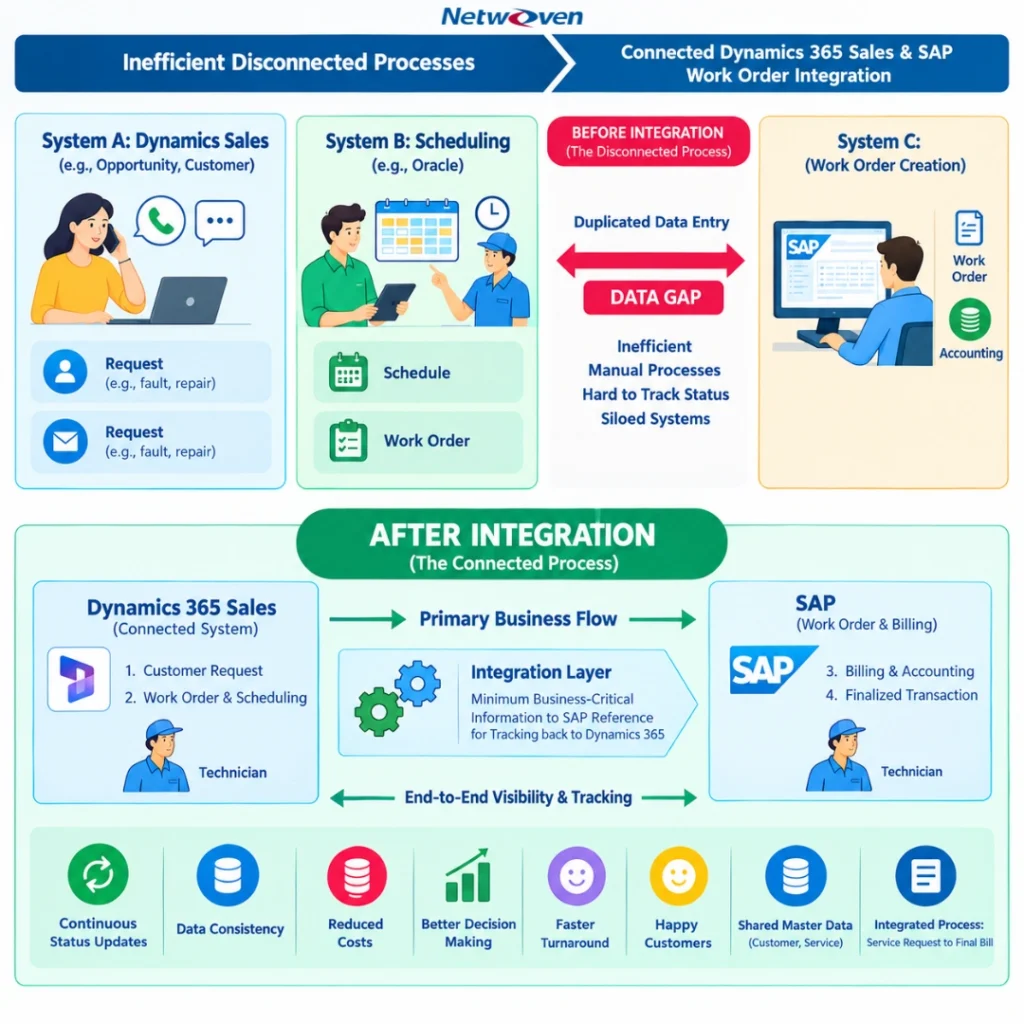
Most work orders start with a customer reaching out. From there someone must schedule the right technician or resource. Often, those updates end up happening in a completely different enterprise system. When the steps live in separate places, things start to break down. Teams end up entering the same information twice and keep tracking where work orders stand.
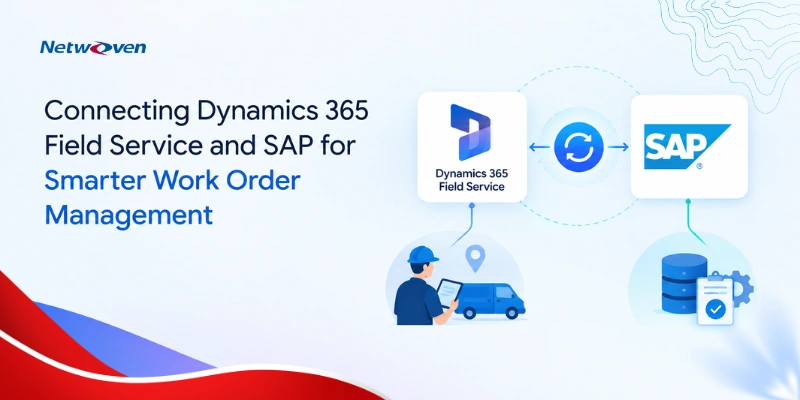
Getting Dynamics 365 Field Service and SAP for Work Orders to work together makes a real difference in how the service process runs. The tricky part is figuring out exactly what SAP needs to process the transaction. You don’t want to overload it, but you also need to keep enough information so the work can be traced back to the original Work Order in Dynamics 365. At the end of the day, both systems just need to stay in sync.
The Challenge: Two Systems, One Service Process
| Without Integration | With Integration |
|---|---|
| Work Order information may need to be entered or updated in more than one place | Relevant Work Order information can be exchanged between Dynamics 365 and SAP |
| Limited visibility of status and progress across systems | Better visibility of Work Order status and progress. |
| Inventory and supply information can be harder to track consistently | Inventory and supply information can be tracked more accurately |
| Manual hand-offs can increase the chance of errors or inconsistencies | Automated data exchange can reduce manual effort and inconsistencies |
What Needs to Be Connected Between Dynamics 365 Field Service and SAP?
| Area | Dynamics 365 Field Service | SAP / Integration |
|---|---|---|
| Work Order | Work Order is created and managed for field-service activity. | Relevant Work Order information is exchanged with SAP. |
| Status | Field-service progress is updated in Dynamics 365. | Status information can be shared so both systems remain synchronized. |
| Resources | Scheduling and resource allocation are handled as part of field operations. | Integration supports the exchange of required information. |
| Inventory / Supplies | Parts and supply information may be associated with the service activity. | Relevant information can be transferred for accurate tracking. |
| Data Mapping | Dynamics 365 fields provide the source structure for field-service information. | SAP fields are mapped to the corresponding Dynamics 365 fields. |
How to Set Up Dynamics 365 Field Service Integration with SAP
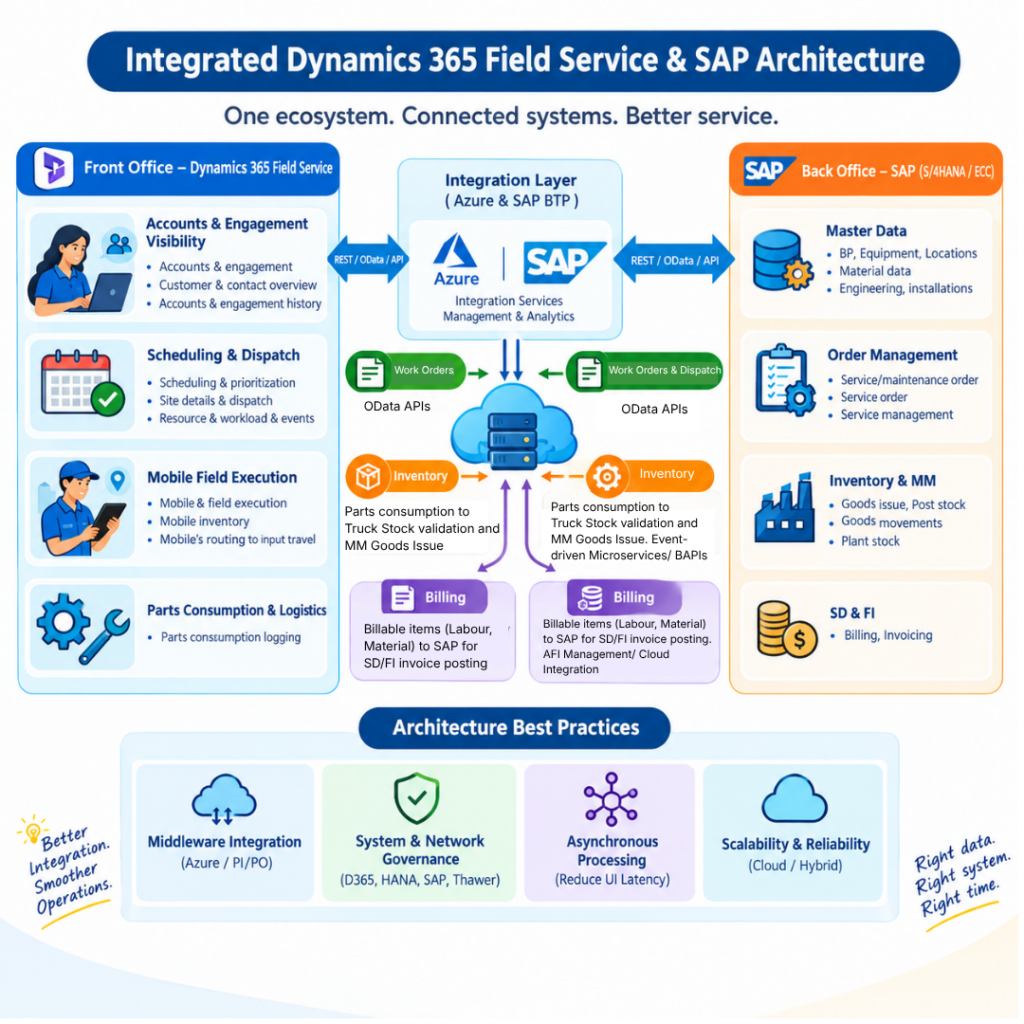
1. Establish the Connection: Configure the required connection between Dynamics 365 Field Service and SAP, including the APIs and authentication needed for communication.
2. Enable Work Order Data Exchange: Provide the SAP side API or interface required to receive and exchange Work Order information.
3. Map the Fields: Map Dynamics 365 fields to the corresponding SAP fields so that information is transferred consistently and accurately.
4.Configure Scheduling and Resource Allocation: Configure the scheduling and resource allocation process to ensure that work orders are consistently assigned to the right technicians, resources, and equipment.
5. Test the Integration: Validate the complete flow and check for missing data, mapping issues, errors, or inconsistencies before the integration is used in day-to-day operations.
The Real Value of Integrating Dynamics 365 Field Service with SAP
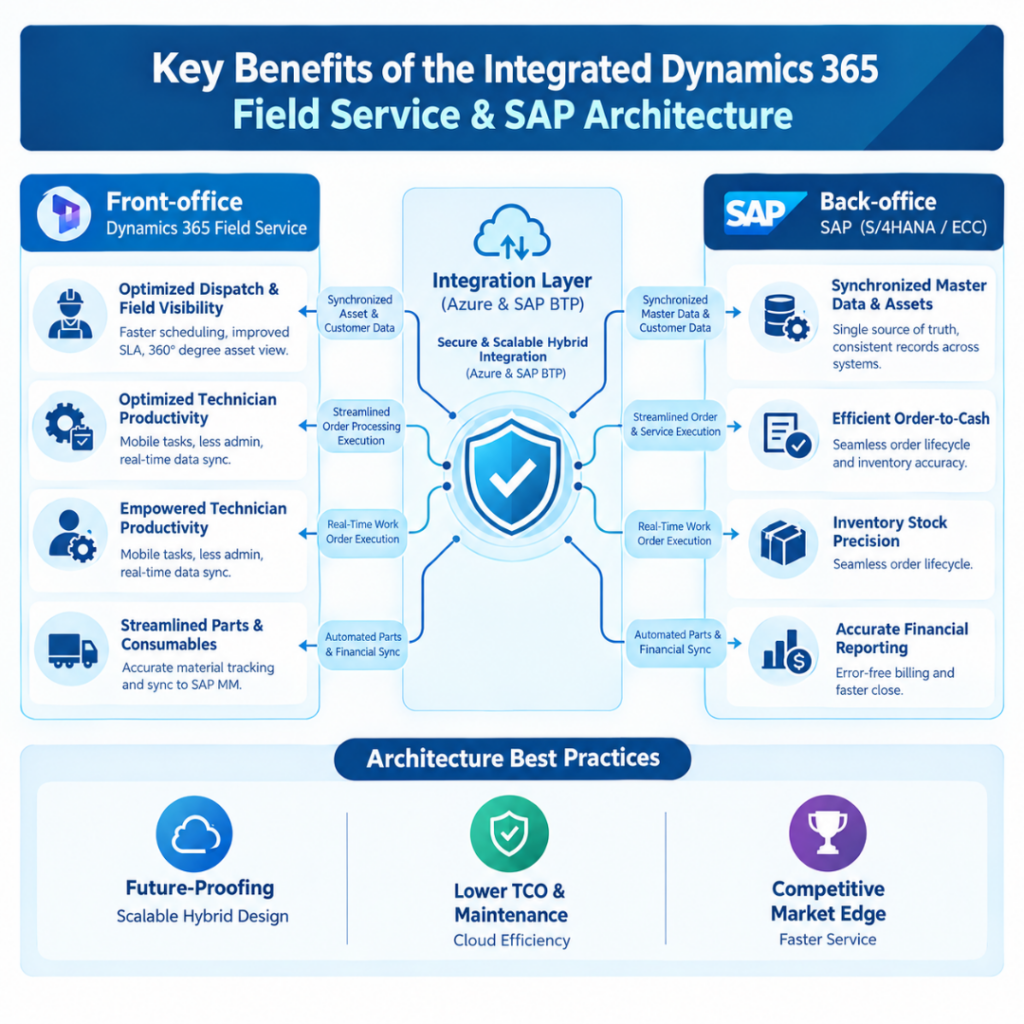
- Improved efficiency and productivity
- Enhanced visibility into WO status and progress
- Accurate tracking of inventory and supplies
- Reduced errors and inconsistencies
- Improved customer satisfaction
A Practical Perspective
The real point of integration is getting two applications to work together as part of the same business process. Dynamics 365 Field Service handles what’s happening out in the field, and SAP takes care of the enterprise-side processes that depend on that Work Order information. When the integration is done right, the two systems stay in sync without anyone having to think about it. Information moves from Dynamics 365 to SAP automatically, so there’s no double entry and far fewer mistakes. That alone frees people up to focus on work that needs their attention.
Common Data That May Be Exchanged
The payload contents depend on the integration design. With Work Orders, it’s common to need a clear definition of what information travels between systems. Grouping this data makes the interface simpler to understand and validate
| Data Area | Examples | Why It Matters |
|---|---|---|
| Work Order | Work Order number, type, description, priority, status | Identifies the service activity and its current stage, while associated work order documents may require separate access controls when stored in SharePoint |
| Customer / Location | Customer, service account, service location | Connects the Work Order to the correct customer and site |
| Resource | Technician, team, equipment or assigned resource | Helps keep the field activity aligned with the planned resource |
| Parts / Materials | Part, quantity, availability or supply information | Supports accurate material and inventory tracking. |
| Dates / Scheduling | Planned date, booking or service timing | Provides context for when the service activity is expected |
| Reference IDs | Dynamics 365 ID, SAP document/order reference | Helps trace the same business transaction across systems |
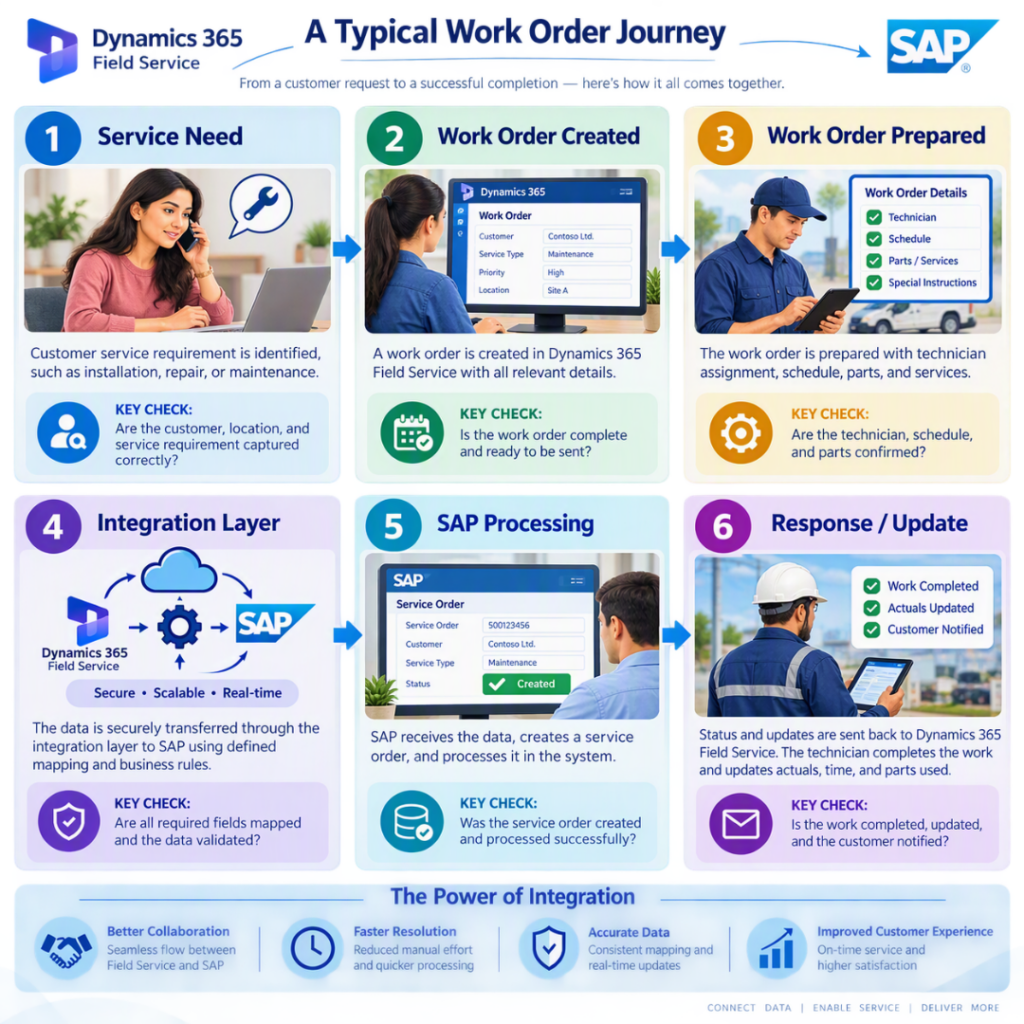
A Typical Work Order Journey
A good way to understand this is to just follow the Work Order from start to finish. It begins in Dynamics 365, the key details move through the integration, and SAP gets everything it needs to continue the process on the back end.
Critical Data Mapping Between Dynamics 365 Field Service and SAP
When it comes to Work Order integration, a big part of the work is figuring out what actually needs to move between Dynamics 365 Field Service and SAP. You don’t need to integrate everything – just the fields that matter for creating, processing, tracking, and closing out the service transaction. What that looks like in practice really depends on the customer’s setup and how SAP is designed, but there are some areas that almost always come into play.
Key Field Mapping
| Dynamics 365 Field Service | SAP | Why It Is Important |
|---|---|---|
| Work Order Number | Service Order no / External Reference no | Provides a common reference to link and trace the transaction between Dynamics and SAP |
| Work Order Type | SAP order type | Set the specific workflow and document rules used to process different types of Work Order (for e.g. install and non-install) |
| Work Order Status | SAP order status | Tracks the operational progress of the service activity across both systems |
| Customer/account | Customer/Business Partner | Identifies who is requesting or receiving the service |
| Service Location | Functional location/Equipment location | Identifies where the service needs to be performed |
| Customer asset | Equipment | The Work Order assigned to the specific machine or asset being serviced |
| Description | Order short text/Description | Provides the technician and planner with details about the required service work |
| Priority | SAP priority | It determines the urgency of the activity |
| Bookable resource | SAP personnel/Resource | Assigns the field technician or engineer to the task in SAP |
| Planned start/end date | SAP date/Scheduling | It helps to identify the planned start and end date |
| Product/ Part | Material Number | The product or part to be installed at the client end |
| Quantity | Material Quantity | The quantity of materials shipped to the client |
| Warehouse / Warehouse Location | Plant / Storage Location | Important when parts need to be sourced from a particular plant or storage location |
| Time Entry / Labor | Activity Type / Labor Information | Supports the transfer of technician effort where the process requires it |
| Currency / Price | SAP Pricing Information | Relevant when service or material charges are exchanged |
One Important Principle
The point of mapping isn’t to recreate every single Dynamics 365 field in SAP. It’s about figuring out the smallest set of information SAP needs to process the transaction – just enough to get the job done but still detailed enough that the work can be traced back to the original Work Order in Dynamics 365 if needed.
What Happens When Something Goes Wrong?
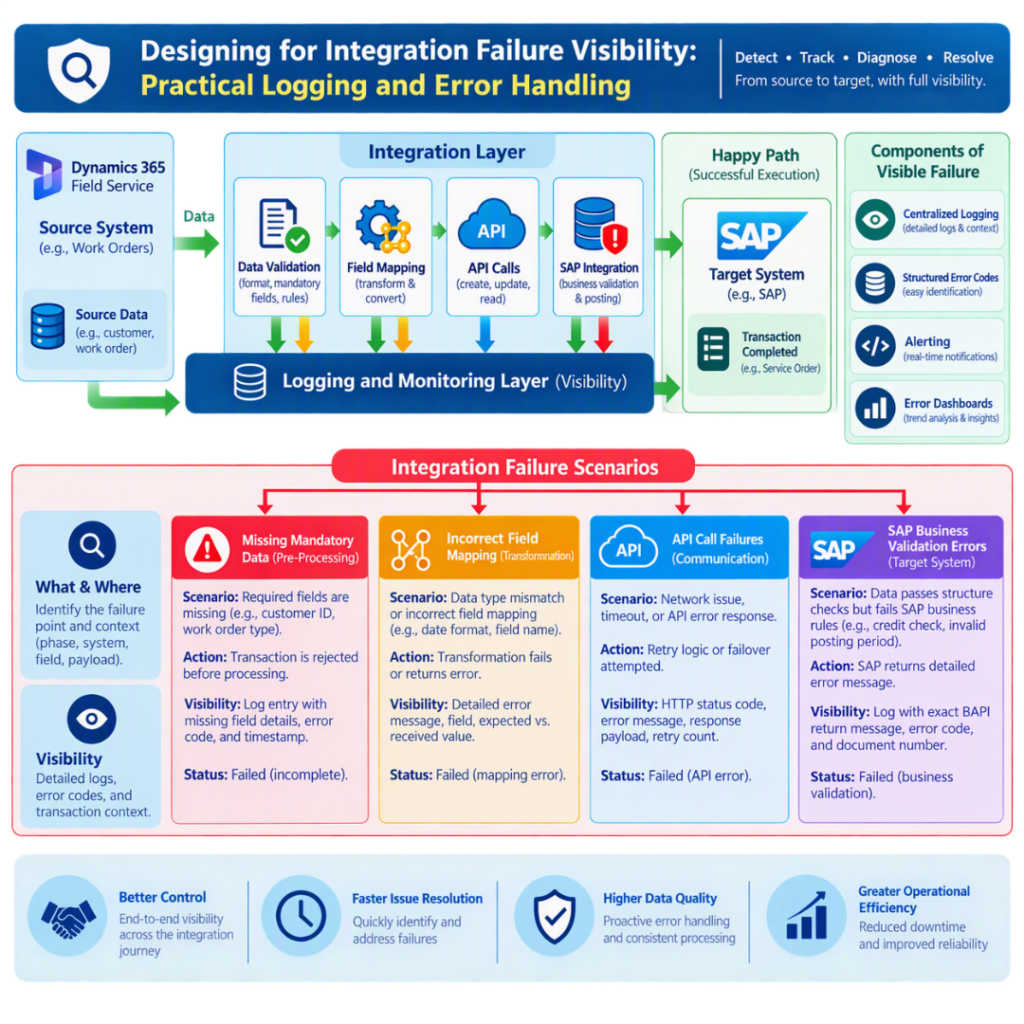
Things don’t always go smoothly, and a good integration design needs to account for that. When something breaks, there has to be enough logging and error detail to figure out what went wrong and where. That usually means handling things like missing required fields, mapping mistakes, API call failures, and the various validation errors SAP might throw back.
| Scenario | Possible Impact | Useful Control |
|---|---|---|
| Missing mandatory field | SAP may reject the transaction | Validation before sending |
| Incorrect field mapping | Incorrect information reaches SAP | Mapping review and end-to-end testing |
| Communication / API failure | The message may not reach the target system | Retry mechanism and integration monitoring |
| SAP business validation error | SAP receives the message but cannot process it | Clear error response and traceable reference |
| Duplicate message | The same transaction could be processed more than once | Unique transaction/reference ID and duplicate handling |
Best Practices for Stronger Dynamics 365 Field Service and SAP Integration
In practice, integration gets a lot easier to manage when the teams agree upfront on the basics – what’s mandatory, which system owns what, how statuses line up between the two sides, and how failed messages get flagged and retried.
Key takeaway: Work Order integration that’s done well isn’t just about moving data from one system to another. It’s really about building a connected process where everyone knows who owns what, the mappings are clear, status changes flow properly between systems, and there’s enough monitoring and traceability to trust what’s happening. Having a simple transaction reference that both systems can see also saves a lot of headaches when something goes wrong and someone has to figure out where things fell apart. Similar principles apply when building an Azure-powered integration architecture around Dynamics 365.
Conclusion
When Dynamics 365 Field Service and SAP are integrated, the whole service process runs smoothly. You get better visibility, fewer manual errors, more consistent data, and inventory tracking that stays accurate. The key is getting the basics right, a reliable connection between the two systems, a clear picture of what data needs to move, properly mapped fields, a process both teams agree on, and solid end-to-end testing. Once everything is in place, Dynamics 365 and SAP stop feeling like two separate worlds and start working as one connected flow.
For further queries, please reach out to our experts.