
Why Is the Dynamics 365 Dropdown Not Closing?
For the last three years we’ve supported a Dynamics 365 Field Service implementation for a global semiconductor equipment manufacturer. Planners and field managers there spend much of their day in custom Power Apps Component Framework (PCF) controls:
- A weekly time entry grid and a Gantt chart for installation and service demands, whose base controls came from a previous vendor and which we’ve since extended with many new features and enhancements.
- An editable grid for demand planning, which we built from scratch.
For a long time, users mentioned an annoyance in passing. On some screens, once they opened a dropdown in the Dynamics shell, clicking elsewhere on the page didn’t close it. It happened with the global search box’s recent searches, the Show As menu on the view ribbon, and the Export to Excel menu. The only ways out were pressing Esc or running a search. Nobody filed it as a defect. Most people assumed it was their browser or a passing glitch.
That changed when the customer began rolling out Dataverse’s Modern Advanced Find. It’s launched from the global search dropdown, through the “Search for rows in a table using advanced filters” link, so testing it meant opening that dropdown again and again on every page, including ours. The sticky dropdown was hard to miss, and it was first logged against Modern Advanced Find, since that’s where it showed up.
Our development team took the ticket and narrowed it down. The dropdowns stuck only on the pages hosting the time entry grid and the Gantt. On standard views, and on the editable grid, they closed normally. Modern Advanced Find wasn’t the cause.
No data was at risk, and every feature still worked. But these dropdowns are part of everyday navigation, and a menu that won’t go away makes an application feel broken.
Why the Dynamics 365 Dropdown Issue Was Difficult to Diagnose
The usual suspects didn’t apply:
The working and failing screens looked alike. All three controls are React-based PCF controls bound to a view, and all three use Fluent UI components, including popups. .
The dropdowns belong to the platform. Our controls don’t open or close them, so there was no code of ours to step through.
There were no errors. The console was clean.
How We Diagnosed the Dynamics 365 Dropdown Problem
Step 1: Check Whether the PCF Control Is Swallowing Click Events
A component that calls stopPropagation() on mouse events can stop the platform from ever seeing a click. We logged every pointer, mouse and focus event at the top of the page and again on the way back up:
['pointerdown', 'mousedown', 'mouseup', 'click', 'focusin', 'focusout'].forEach(t => {
  window.addEventListener(t, e => console.log('capture', t, e.target), true);
  document.addEventListener(t, e => console.log('bubble ', t, e.target, 'defaultPrevented=', e.defaultPrevented));
});
Every event reached the document, and none was canceled. The platform was receiving the clicks. It was choosing to ignore them.
Step 2: Who was Moving Focus?
The event log showed focus jumping to elements the user hadn’t clicked. To find the caller, we wrapped HTMLElement.prototype.focus and printed a stack trace on every call:
const origFocus = HTMLElement.prototype.focus;
HTMLElement.prototype.focus = function (...args) {
  console.trace('focus() called on', this);
  return origFocus.apply(this, args);
};
Every trace pointed into the platform’s own global search scripts, not into our bundle. That ruled out our code as the actor, but focus turned out to be a side effect, not the cause. One theory based on it, and another based on a scroll-container attribute, failed when tested in the browser.
Step 3: Inspect the Unified Interface Flyout Dismissal Logic
The Unified Interface scripts are served to the browser as static files, so the code deciding whether a click is “outside” a flyout can be read in DevTools. The answer was one line (minified source, lightly formatted):
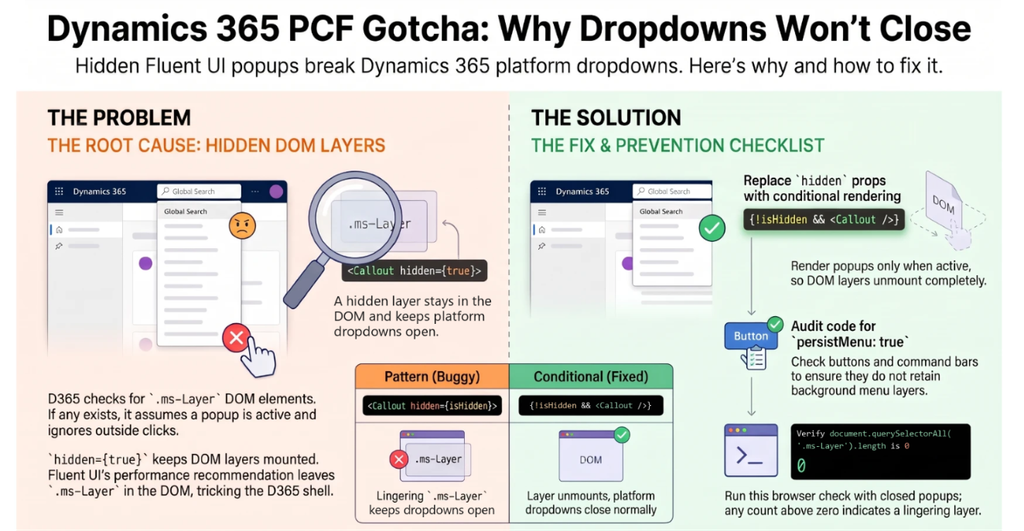
if (this._contains(e.target) || document.querySelector(".ms-Layer")) return true; If any element with the CSS class .ms-Layer exists anywhere in the page, the platform treats every click as a click inside its flyout, and the flyout stays open.
User clicks somewhere on the page while a platform dropdown is open
        │
        ▼
Is the click inside the dropdown itself?
        │
        ├──Yes──► Keep the dropdown open
        │
        └──No
             │
             ▼
        Does any .ms-Layer element exist anywhere in the page?
             │
             ├──Yes──► Keep the dropdown open (our hidden popups ended up here)
             │
             └──No ──► Close the dropdown (standard views ended up here)
The rule is reasonable. Fluent UI renders popups (callouts, context menus, dialogs) into a “layer” with that class. If a popup is open, the user is probably working in it, and the platform shouldn’t close its own dropdown underneath.
The problem is the assumption that a layer in the page means a popup is open.
What Causes a Dynamics 365 Dropdown to Stay Open?
Fluent UI’s Callout and ContextualMenu both accept a hidden prop. Fluent’s own documentation recommends it over conditional rendering:
“Use this flag, rather than rendering a callout conditionally based on visibility, to improve rendering performance when it becomes visible.”
With hidden={true}, the component stays mounted so it can appear instantly, and its .ms-Layer element stays in the page. Nothing is visible to the user, but the platform sees a layer and concludes a popup is open.
Both failing controls followed the documented advice:
- Time entry grid: the toolbar’s date-picker Callout was always mounted, with hidden={calloutHidden}.
- Gantt: the toolbar’s start-month Callout used the same pattern, and every column header had its own ContextualMenu mounted with hidden={!showMenu}.
The editable grid uses Fluent UI too: its command bar, dialogs, date pickers, dropdowns and people picker all open Fluent popups. But each of those exists only while it’s open, so no layer stays on the page once it closes. The component library was never the issue. The difference was whether a popup stayed mounted while hidden, and that lined up exactly with the screens users complained about.
None of this was careless code. It followed the library’s own performance guidance. The clash only appears when a Fluent control is hosted inside a platform that reads Fluent’s class names to make its own decisions.
How to Fix a Dynamics 365 Dropdown That Won’t Close
Render the popup only while it’s open. When it closes, React unmounts it and the layer leaves the page with it.
Before:
<Callout target={calendarButton} hidden={calloutHidden} onDismiss={() => setCalloutHidden(true)}>
    <Calendar value={selectedDate} onSelectDate={onSelectDate} />
</Callout>
After:
{!calloutHidden && (
    <Callout target={calendarButton} onDismiss={() => setCalloutHidden(true)}>
        <Calendar value={selectedDate} onSelectDate={onSelectDate} />
    </Callout>
)}
The column header menu got the same treatment:
{showMenu && <ContextualMenu target={cellRef} items={menuItems} onDismiss={onHideMenu} onItemClick={onHideMenu} />} Why Not Fix It with CSS?
A global style such as .ms-Layer { display: none; } or pointer-events: none looks tempting, but it can’t work. The platform’s check is document.querySelector(“.ms-Layer”), which only asks whether the element exists. It doesn’t care whether the element is visible or clickable. CSS can change how an element looks and behaves, but it can’t remove the element or its class, so the platform still finds it. A style broad enough to catch the hidden layers would also hide the popups users need. Stripping the class with JavaScript is no better: it interferes with Fluent’s own styling and fights React’s rendering. Removing the component from the page is the only clean fix.
The Trade-Off
We changed three components across two controls, with no change to logic or state. The trade-off is that each popup now mounts when it opens instead of waiting hidden in the page. For a calendar or a short menu that cost is small, and the calendars and menus look and behave as before.
QA confirmed that the platform’s dropdowns, including global search, Show As and Export to Excel, now close normally on both screens.
A Checklist for PCF Authors Using Fluent UI
- Search your code for hidden = on Callout and ContextualMenu, including wrappers that pass it through calloutProps or menuProps. Replace it with conditional rendering.
- Check buttons and command bar items for persistMenu: true. Fluent’s documentation says it keeps a button’s menu in the page and hides it instead of destroying it, which leaves a layer behind in the same way.
- Run a one-line check. On any page hosting your control, with none of your popups open, run document.querySelectorAll(‘.ms-Layer’).length in the browser console. Anything above 0 means a layer is lingering, and platform dropdowns on that page won’t close on an outside click.
- Add one step to your PCF test plan: open the global search box and the Show As menu over your control, then click outside. It takes ten seconds and catches this whole class of problem.
- Know the limit. While one of your popups is genuinely open, a layer exists and the platform will keep its own dropdown open. That’s the platform working as designed, and there’s nothing to fix.
Key Takeaways
- Platform shells can depend on library internals. Dynamics 365 decides whether to close its dropdowns by looking for Fluent UI’s .ms-Layer class anywhere in the page.
- A documented optimization can be a bug in a host. Fluent’s advice to keep popups mounted with hidden is sound in a standalone app and harmful inside the Dynamics shell.
- Trace before you theorize. Logging events and patching focus() ruled out our code quickly. Reading the platform’s own dismissal logic gave the answer after two plausible theories failed.
- The fix was small. Rendering popups only while open fixed the problem in three components, with no visible change for users.
The platform behavior described here was observed in October 2026. Microsoft may change the Unified Interface’s flyout logic in a future release, so re-run the console check after major platform updates.
Join the Conversation
Have you hit a platform clash like this in your own PCF controls? Share what you found, or how you fixed it. We’d like to hear about it.
Need help troubleshooting or extending custom PCF controls in Dynamics 365 or Power Apps? Our team builds and supports them for enterprise customers. Reach out to our experts.
Email: info@netwoven.com
Need Help Fixing or Optimizing Your Dynamics 365 PCF Controls?
Netwoven helps organizations build and optimize custom PCF controls using React, TypeScript, and Fluent UI for reliable experiences across Dynamics 365 and Power Apps.
Frequently Asked Questions
A Dynamics 365 dropdown may remain open if a hidden Fluent UI Callout or ContextualMenu leaves an .ms-Layer element mounted in the DOM. The Unified Interface may interpret that lingering layer as an active popup and keep the platform dropdown open.
Conditionally render the Fluent UI popup only while it is open. Instead of retaining the component with hidden={true}, unmount it when closed so that its .ms-Layer element is removed from the page.
Yes. A PCF control can indirectly affect platform menus if it leaves hidden Fluent UI popup layers in the DOM. The PCF control does not need to cancel the user’s click for the issue to occur.
.ms-Layer in Fluent UI? .ms-Layer is a CSS class associated with the layer used by Fluent UI to render popup content such as callouts, contextual menus, dialogs, and other overlay components. A layer can remain in the DOM when a popup is hidden but still mounted.
hidden={true} remove a Fluent UI Callout from the DOM? No. The hidden property hides the Callout but keeps the component mounted. This can improve reopening performance, but it may also leave an .ms-Layer element in the page.
hidden prop? Use conditional rendering when a hidden Fluent UI popup interferes with the Dynamics 365 shell. Rendering the Callout or ContextualMenu only while open removes its layer after dismissal and prevents a hidden popup from affecting platform dropdowns.
The issue may occur only on pages hosting PCF controls that keep Fluent UI popups mounted while hidden. Pages where popup components are unmounted after closing will not leave persistent .ms-Layer elements behind.
Reference
- Microsoft Learn, About Unified Interface for model-driven apps in Power Apps