When Ownership and Access Don’t Match
In financial services sales, ownership is sacred.
The primary relationship owner gets the credit. They manage the account. They own the data. Their name is on the record, and that’s how it should be—clear accountability, clean reporting, straightforward commission calculations.
But here’s the problem: coverage models aren’t that simple.
- A regional sales rep owns the account, but a product specialist needs to see the data to support a complex deal
- The primary team manages the relationship, but a secondary team provides coverage during vacations or territory transitions
- Institutional sales owns the client, but the municipal bond desk needs visibility for cross-selling opportunities
In each case, the business need is the same: Grant access without changing ownership.
And in Dynamics 365, that’s harder than it sounds.
The Cross-Coverage Dilemma
Here’s a question that keeps sales operations teams up at night:
“How do you give Team B access to Team A’s accounts without making Team B the owner?”
The out-of-box answer in Dynamics 365 is… complicated.
You could: – Manually add users to multiple teams (doesn’t scale) – Share records individually (administrative nightmare) – Create complex security role hierarchies (brittle and hard to maintain) – Accept that some teams just won’t have the access they need (deals fall through cracks)
None of these solve the fundamental problem: when coverage models require flexible, cascading access across team boundaries, Dynamics 365 doesn’t have a native answer.
What Financial Services Organizations Actually Need
In conversations with sales leaders at financial institutions, we hear the same requirements:
| Requirement | Why It Matters |
| Preserve ownership | Commissions, accountability, and reporting depend on clear ownership |
| Enable cross-coverage | Sales teams need to support each other without stepping on toes |
| Automate access | Manual processes don’t scale and create compliance gaps |
| Maintain audit trails | Regulators want to know who had access and why |
| Keep it simple | Sales ops shouldn’t need a PhD to manage team permissions |
The real need isn’t just “team management”—it’s enabling flexible sales coverage models while maintaining clear data ownership.
Why This Problem Exists: The Out-of-Box Limitation
Here’s the fundamental issue: Dynamics 365 has no native way to synchronize team memberships.
Teams are completely independent entities in the platform. When you add a user to Team A, Dynamics 365 doesn’t know (or care) that they should also be in Teams B, C, and D. This design creates significant administrative overhead when:
- Organizations have related teams that should share members (loan processing and loan reporting teams)
- Security roles are team-based (common in enterprise deployments where permissions flow through team membership)
- Project-based or matrix structures exist (cross-functional teams, temporary initiatives, regional + functional hierarchies)
This Isn’t Just a Financial Services Problem
While we built this solution for a financial services client, the pain is universal:
Healthcare:
- Care teams (doctors, nurses, specialists) need synchronized access to patient records
- Department teams with sub-specialties require coordinated permissions
- On-call rotation teams need instant access provisioning
Professional Services:
- Project teams need coordinated access to: Project workspace, Reporting tools, Collaboration spaces, Client portals
- Manually maintaining 4-5 team memberships per consultant is error-prone and delays billable work
Manufacturing:
- Quality control teams across multiple plants need consistent access
- Safety teams require both regional and corporate access
- Production teams with shift-based access need real-time synchronization
Government:
- Departmental teams with clearance-based access requirements
- Inter-agency collaboration teams
- Program teams with time-limited access needs
The common thread? Related teams that should move together, but don’t.
Why Traditional Solutions Fall Short
Most organizations try one of these approaches before admitting defeat:
1. Power Automate Flows
“We’ll just create a flow that watches for team changes and syncs them!”
The Reality:
- API call limits: Limited to 256 API calls per flow run – hit quickly with large teams
- Polling delays: Not real-time; sync happens minutes or hours later
- Performance issues: Slows down with multiple teams and complex logic
- Complex error handling that still misses edge cases
- Difficult to debug when something goes wrong (buried in flow history)
- Additional licensing costs for premium connectors
- No audit trail suitable for compliance
One of our clients had seven different flows trying to manage team sync. Three had been disabled due to errors. Two were running but not working correctly. The IT Manager didn’t know what the other two did.
2. Manual Maintenance
“We’ll maintain a spreadsheet that shows which teams go together, and train people to check it.”
The Reality:
- Error-prone: Human mistakes in 5-10% of changes
- Time-consuming: Every change requires multiple manual steps
- Inconsistent: Different people do it differently
- No audit trail: Can’t prove who changed what when
- Spreadsheet outdated within a week of creation
- New hires don’t know the process exists
- Compliance liability when auditors find discrepancies
3. Hardcoded Plugins
“We’ll write a custom plugin that syncs specific teams.”
The Reality:
- Requires code changes for every new team mapping
- Deployment overhead: Change control, testing, deployment cycles for simple updates
- No flexibility: Business decisions require developer involvement
- Can’t be managed by admins: IT staff locked out of configuration
- Technical debt that nobody wants to touch
- Documentation gaps: Knowledge leaves when developers leave
One organization had a plugin that synced 5 team pairs. When they needed to add a 6th pair, they discovered the original developer had left the company and nobody knew how to modify the code safely.
4. Custom Applications
“We’ll build a custom app to manage team relationships.”
The Reality:
- Over-engineered: Building what should be simple configuration
- Maintenance burden: Another app to maintain, patch, and support
- User adoption challenges: Training required, resistance to new tools
- Integration complexity: Keeping it in sync with Dynamics changes
- Cost prohibitive: Development, hosting, ongoing support
5. Do Nothing (The Default)
“We’ll just be really careful and maybe send reminder emails.”
The Reality:
- Errors accumulate over time
- Security incidents from incorrect access
- Audits fail when reviewers find discrepancies
- Productivity lost when users can’t access what they need
- Someone gets blamed when something goes wrong
But What About Entra ID Security Group Teams?
If you’re a Dynamics 365 architect, you’re probably thinking: “Why not just use Microsoft Entra ID (Azure AD) Security Group Teams? That’s the Microsoft-recommended approach.”
It’s a fair question. Entra ID Group Teams are powerful for simple scenarios—but they hit a wall fast in complex enterprise environments.
When Entra ID Group Teams Work Well
Entra ID sync excels at 1:1 mapping: one security group equals one Dynamics team. If your organization has straightforward team structures where each team maps cleanly to a single AD group, Entra ID is a solid choice.
When Entra ID Group Teams Fall Short
In financial services and other complex environments, we consistently see these limitations:
| Capability | Entra ID Group Teams | Dynamic Team Membership Sync |
| Mapping Complexity | 1:1 only (one group = one team) | N:N supported (one parent team syncs to multiple child teams) |
| Cascading Relationships | No native nesting across teams | Automated cascading—one change propagates everywhere |
| Trigger Source | Limited to AD attributes | Triggers from Dynamics team membership directly |
| CRM-Specific Logic | Cannot use Dynamics data for rules | Can incorporate CRM attributes (roles, account ownership, etc.) |
| Visibility | Membership hidden in Entra portal | Members visible in Dynamics Team subgrid for easy audit |
| Dynamic Group Limits | 50-group limit for “MemberOf” rules (preview | No artificial limits on team relationships |
| Licensing | Requires Entra ID P1/P2 for dynamic rules | Works with standard Dynamics/Dataverse licensing |
| Admin Control | Requires Entra admin access | Dynamics admins manage directly in CRM |
The Real-World Gap
Consider this common financial services scenario:
“When a user joins the Commercial Lending team, they need access to three related teams: Private Workspace, Reporting Access, and Document Library. But if they’re a Senior Loan Officer, they also need access to the Approval Queue team.”
With Entra ID: You’d need to create and maintain multiple nested security groups, manage complex dynamic group rules (hitting the 50-group limit quickly), and still couldn’t incorporate CRM-specific attributes like “Senior Loan Officer” role assignment.
With Dynamic Team Membership Sync: One configuration record with four child teams. Done in 5 minutes by a Dynamics admin.
The Bottom Line on Entra ID
Entra ID Group Teams and Dynamic Team Membership Sync aren’t mutually exclusive—many organizations use both:
- Entra ID for broad organizational teams that map cleanly to AD groups (All Employees, Department X, Location Y)
- Dynamic Sync for operational teams with complex relationships (project teams, role-based access, cascading permissions)
The question isn’t “which one?” but “which one for which scenario?”
A Better Way: Dynamic Team Membership Sync
What if team synchronization was:
– Automatic (no manual steps)
– Instant (real-time, not delayed)
– Flexible (admins control it, not developers)
– Reliable (built-in error handling and loop prevention)
– Auditable (complete trace logs)
This isn’t theoretical. We built exactly this for a financial services client facing the challenges above.
The Solution Architecture
The solution consists of three components:
1. Configuration Tables – Two custom tables in Dynamics 365 where admins define team relationships:
– Team Sync Configuration: Defines parent teams and sync direction
– Team Sync Members: Lists which child teams sync with each parent
2. Custom Plugin – A Dynamics 365 plugin that:
– Listens for team membership changes (add/remove)
– Reads the configuration to find related teams
– Automatically syncs the user to all configured teams
– Handles both one-way and bidirectional relationships
3. Native Dynamics UI
Everything is managed through standard Dynamics 365 forms and views. No special tools needed.
How It Works
Let’s walk through a real scenario from our financial services client:
The Requirement:
When someone joins the “Commercial Lending Team,” they need automatic access to:
1. Commercial Lending – Private Workspace
2. Commercial Lending – Reporting Access
3. Commercial Lending – Document Library
The Setup (One-Time, 5 Minutes):
An admin creates one Team Sync Configuration record:
– Parent Team: Commercial Lending Team
– Sync Direction: One-way
– Status: Active
Then adds three Team Sync Member records:
– Child Team: Commercial Lending – Private Workspace (Order: 10)
– Child Team: Commercial Lending – Reporting Access (Order: 20)
– Child Team: Commercial Lending – Document Library (Order: 30)
Here’s What the Configuration Looks Like:
Team Sync Configuration (Parent Record):
| Field | Value |
| Name | Commercial Lending Sync |
| Parent Team | Commercial Lending Team |
| Sync Direction | One-way (Parent → Children) |
| Status | Active |
Team Sync Members (Child Records):
| Child Team | Sync Order | Status |
| Commercial Lending – Private Workspace | 10 | Active |
| Commercial Lending – Reporting Access | 20 | Active |
| Commercial Lending – Document Library | 30 | Active |
That’s it. No code. No complex rules. Just configuration that any Dynamics admin can manage.
The Result: From that moment forward, any user added to “Commercial Lending Team” is automatically added to all three child teams. Any user removed from the parent team is automatically removed from the child teams.
Zero manual steps. Zero errors. Zero delays.
Under the Hood: Technical Architecture
For the technically curious, here’s how the solution works at a deeper level:
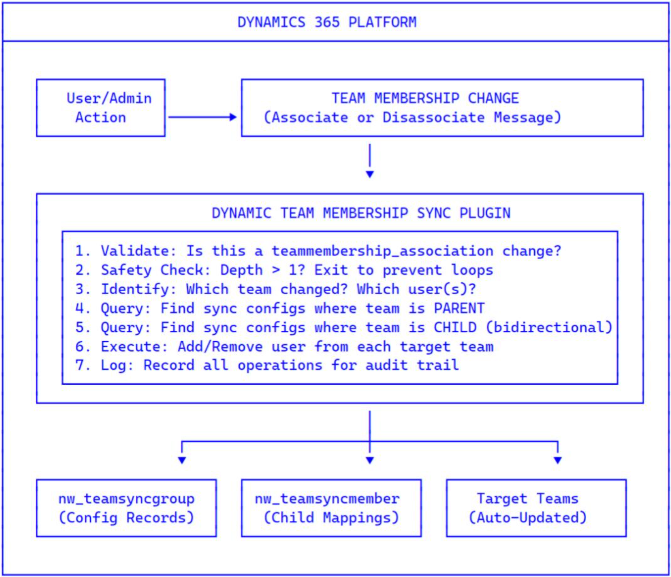
Event Flow:
1. Trigger: User is added to or removed from a team (via UI, API, or bulk operation)
2. Intercept: Plugin fires on the Associate or Disassociate message for teammembership_association
3. Validate: Plugin checks if this team is part of any sync configuration
4. Forward Sync: If team is a PARENT in any config → sync user to all CHILD teams
5. Reverse Sync: If team is a CHILD in a bidirectional config → sync user to PARENT team
6. Safety: Depth checking prevents cascading from triggering infinite loops
7. Audit: All operations logged with full context (who, what, when, why)
Data Model:
| Table | Purpose | Key Fields |
| nw_teamsyncgroup | Defines sync configurations | Parent Team, Sync Direction, Status |
| nw_teamsyncmember | Maps child teams to configurations | Child Team, Sync Order, Parent Config |
Sync Directions:
| Value | Direction | Behavior |
| 1 | One-way | Parent → Children only |
| 2 | Bidirectional | Parent ↔ Children (changes in either direction sync) |
Why This Solution is Different
Unlike the workarounds that organizations typically try, Dynamic Team Membership Sync addresses the root cause with enterprise-grade capabilities:
1. Compliance-First Design (Critical for Financial Services)
In regulated industries, proving why a user has access is often more important than the time saved. When auditors or your CISO asks “Why does John have access to the Loan Approval Queue?”, you need an answer—instantly.
- Complete audit trail: Every sync operation is logged with user, team, timestamp, and reason
- Traceable causality: Logs show “User added to Team G because they were added to Team A”
- Proof of timely removal: Demonstrate instant de-provisioning when users leave parent teams
- Automated controls: Replace manual processes that auditors question with automated, documented flows
- Built-in reconciliation: Nightly jobs verify sync integrity and flag discrepancies
What this means for your CISO: When regulators ask about access controls, you have automated, timestamped proof—not spreadsheets and email threads.
What this means for auditors: Access changes are deterministic, traceable, and provable. The configuration itself documents the business logic.
2. Admin-Controlled Configuration
- No code changes needed for new team mappings
- Pure configuration through standard Dynamics 365 UI
- Self-service for authorized administrators
- Instant updates without deployment cycles
What this means: Your business team controls team relationships, not your development team. Add a new sync relationship in 2 minutes, not 2 weeks.
3. Flexible Sync Options
- One-way sync: Parent → Children only (most common)
- Bidirectional sync: Parent ↔ Children automatically
- Complex hierarchies: One parent, multiple children
- Ordered processing: Control sequence of team additions
- Active/Inactive: Temporarily disable without deleting configuration
What this means: The solution adapts to your organizational structure, not the other way around.
4. Enterprise-Grade Performance
- Real-time sync: Changes propagate immediately, not minutes later
- Non-blocking architecture: Sync operations don’t freeze the user’s screen
- Efficient queries minimize database impact
- Tested with 10+ child teams without timeout issues
- Ordered processing for dependency management
What this means: Users have access when they need it, not minutes or hours later.
5. Built-In Safety Features
- Depth checking prevents infinite loops in bidirectional sync
- Duplicate detection prevents errors when users already exist
- Non-blocking errors: Sync failures don’t break the original operation
- Comprehensive logging provides complete audit trail
- Validation rules prevent misconfiguration
What this means: The system protects itself (and you) from common failure modes.
6. Dynamics 365 Native
- Standard plugin architecture (not a separate system to maintain)
- Out-of-box tables and security (no special permissions needed)
- Managed solution deployment (clean install/uninstall)
- Works with existing teams (no migration required)
- Leverages platform capabilities (security, audit, backup)
What this means: It feels like a native feature, not a bolt-on solution.
Conclusion
This is the first part, focused on defining the problem. If you have read this far then you are surely looking for some solutions. Meanwhile, we are open to any queries you may have. Please contact us.
In second part, we’ll dive into real-world scenarios and the solutions that bring this model to life.