
Introduction
Microsoft InfoPath, the legacy XML-based form solution, is nearing end of life and now represents a growing operational and security liability. With official retirement scheduled for July 2026, the platform no longer receives updates, modern compliance support, or mobile capabilities. Its architecture relies on .xsn templates and .xml data files, creating further challenges for long-term maintainability.
To future-proof business processes, organizations should transition InfoPath solutions to cloud-native, low-code technologies such as Microsoft Power Apps for modern front-end form experiences, supported by Power Automate for workflow orchestration. This strategic move delivers stronger security, responsive and mobile access, and deeper integration across the Microsoft 365 ecosystem -ensuring that legacy InfoPath forms evolve into sustainable, modern business applications.
1. Design Best Practices
- Leverage modern controls in Power Apps instead of classic DataCard controls for enhanced user experience and maintainability.
- Implement a tabbed view based on sections or workflow stages to organize complex forms and improve navigation.
- Use button controls for distinct actions such as submit, approve, or escalate, ensuring clarity for end users.
- Adopt a consistent naming convention for controls and variables, with patterns reflecting data types and purposes (e.g., txt_FirstName for text, dp_SubmissionDate for dates).
- Utilize gallery controls in place of repetitive tables to efficiently display collections of related items or records.
2. Development Considerations
- Design with multiple user roles and features in mind, ensuring permissions and access are managed appropriately throughout the process.
- Handle saving and post-save actions – such as granting permissions, sending reminder emails, and triggering approval processes – by calling Power Automate flows from Power Apps and passing relevant input parameters.
- Maintain modularity by separating business logic between Power Apps (for UI and user interactions) and Power Automate (for backend processes and integrations).
3. Migration Steps from InfoPath XML Forms to SharePoint Online
XML Form Assessment
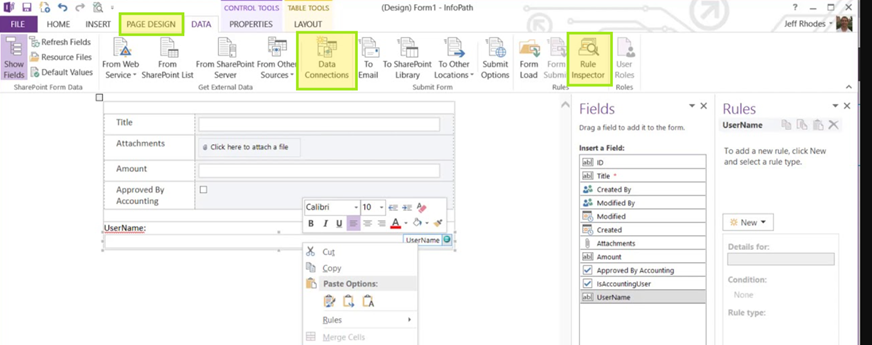
- Data Connection – The process can relate to other applications like Mail, or any third-party application like ServiceNow or SAP. Analyse existing form for custom or embedded columns used, and the data connections. From the data connections, we can get all the attached and used List and Libraries, and other connections.
- Rule Manager – All the rules related to different columns/processes and form on load, form on submit or related to other applications can be found via the rule manager
- View Manager – Also, from the View Manager, you can get to know about different views used in the XML forms. The views can be replaced by the “Screen” in the Power Apps.
- Documentation – Document logic and dependencies to ensure a comprehensive migration plan.
List and Library Preparation
XML form libraries are not supported in SharePoint Online. Even if migrated from on Prem, the xml forms created by InfoPath cannot be used. Hence, redeveloping the solution with modern lists and libraries is the best practice.
- Prepare Main List – Create SharePoint lists reflecting only the columns used in the form and establish connected lists for fetching related information. It’s important to remember that in the OnPrem lists, there may not present all the columns used in the form, as the form have some embedded columns.
- Create additional lists – the additional lists can be used to store configuration settings or any other master lists to populate the dropdown or combo box options, or any other metadata related to attachments.
- Set up document library – Document library to store attachments, organizing them folder-wise for each item.
Designing SharePoint Integrated Forms in Power Apps
- Initialize Collections and variable – While using a SharePoint-integrated form, the collections and variables should be initialized in “OnNew”, “OnEdit”, or “OnView” properties. The controls should be reset within those properties as well.
- UI Structure of the application – Containers and sub containers should be used and properly structured like loading control should contain only loader and overlay, whereas the header containers can contain tab controls and button controls. Every tabbed section should be in properly arranged containers and sub-containers to manage sections.
- Manage UI controls – Connect Power Apps to required lists and libraries for seamless data integration. Redevelop form logic, rules, and submit conditions using modern controls. Also, for repetitive sections, gallery controls should be used.
- Ensure UI/UX consistency – Using default appearance settings of modern and standardized controls like text, date pickers, combo boxes, and People Picker. Theme should be used that represents the branding of the organization, although custom theming options are fewer with modern controls in Power Apps.
- Proper naming conventions – naming for the controls should follow best practice for better management in the future. Like using prefixes related to data type like “txt_” for text control, “cmb_” for combo box or people picker, “dp_” for datapicker control, etc.

Develop the business process using Power Automate
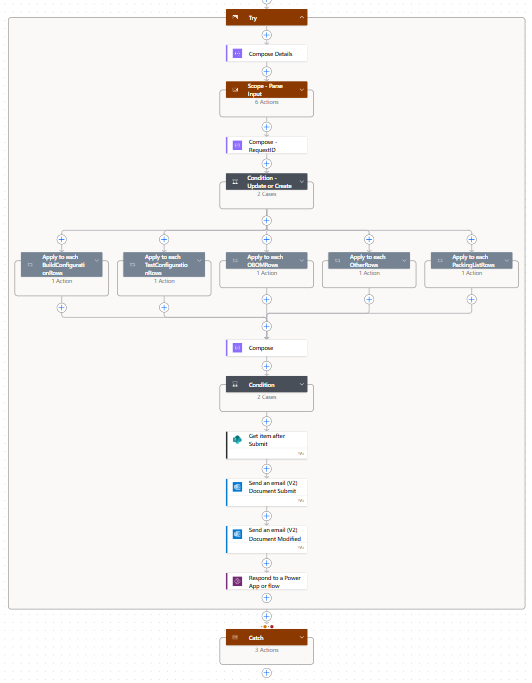
- When modernising InfoPath forms with Power Apps, it is crucial to understand the limitations of the default “OnSave” behaviour, especially when using modern controls. The default “OnSave” may not capture all data inputs or handle attachments robustly, particularly in scenarios involving complex forms or multiple related lists. Therefore, it is best practice to use Power Automate flows for all save operations.
- To ensure data integrity and flexibility, pass all required form data from Power Apps to Power Automate as a well-structured JSON object. This should include main form fields, related list data, and any metadata required for workflow processing. Use indentation and clear property names in the JSON for readability and ease of maintenance.
- Within the Power Automate flow, use the Parse JSON action to extract individual fields and arrays from the incoming payload. This enables the precise creation or updating of items in SharePoint lists and libraries. For forms involving additional data stored in separate lists—such as child records or configuration values—iterate through relevant JSON arrays and perform batch create or update operations as needed.
- Attachments require special handling. Instead of relying on Power Apps’ default attachment control, pass file contents and names to Power Automate. In the flow, use SharePoint’s Create File and Update File properties actions to save files in the appropriate document library, ensuring that each attachment is correctly associated with its parent item using a unique GUID or item ID.
- For delete operations, design dedicated flows that accept file identifiers and GUIDs from Power Apps. These flows should locate the specific file in the document library and remove it securely, maintaining data consistency and compliance. Always return relevant status messages to Power Apps to inform users of successful completion or any errors encountered.
- By following these practices, corporate IT teams can ensure reliable data capture, robust attachment management, and seamless integration between Power Apps and SharePoint Online, laying a solid foundation for future scalability and governance.
4. Testing Tips and Configuration Management
- Establish configuration lists in SharePoint for key parameters such as ListURL, Reviewer, Approver, Gallery control Height, and Gallery control Row Height, including columns for both Production and QA values, and use those configurations as named formulas in the default app “Formulas” property.
- Utilize environment variables to differentiate between environments and facilitate debugging and deployment.
- Thoroughly test all functionalities, including user role permissions, workflow triggers, and attachment handling, across environments to ensure reliability and compliance.
Read this blog on “How to Migrate from Nintex to Microsoft Power Platform: Benefits, Best Practices & Low-Code Gains”
Migrate XML forms for complex business processes from on-Prem to SharePoint Online using Power Platform
InfoPath Forms Services and the ability to use InfoPath forms will be fully retired after July 14, 2026, for both Microsoft 365 SharePoint Online and all supported on-premises SharePoint Server versions (2016, 2019, and Subscription Edition).
After this date:
- Existing InfoPath forms in SharePoint Online and on-premises will stop working.
- Users will no longer be able to submit new data.
- Designers will be disallowed from creating, modifying, or publishing form templates.
- There will be no security updates, patches, or technical support provided by Microsoft.
Microsoft officially announced the discontinuation of InfoPath development back in 2014 and has been guiding organizations to transition to modern alternatives
Do you have a complex business process built using InfoPath?
Stop managing. Start optimizing. It’s time to transition from cumbersome InfoPath XML forms to Smart, Hyper-Efficient Automation. Contact our team today. We’ll help you convert your forms and unlock game-changing compliance, engineering, and procurement workflows.