

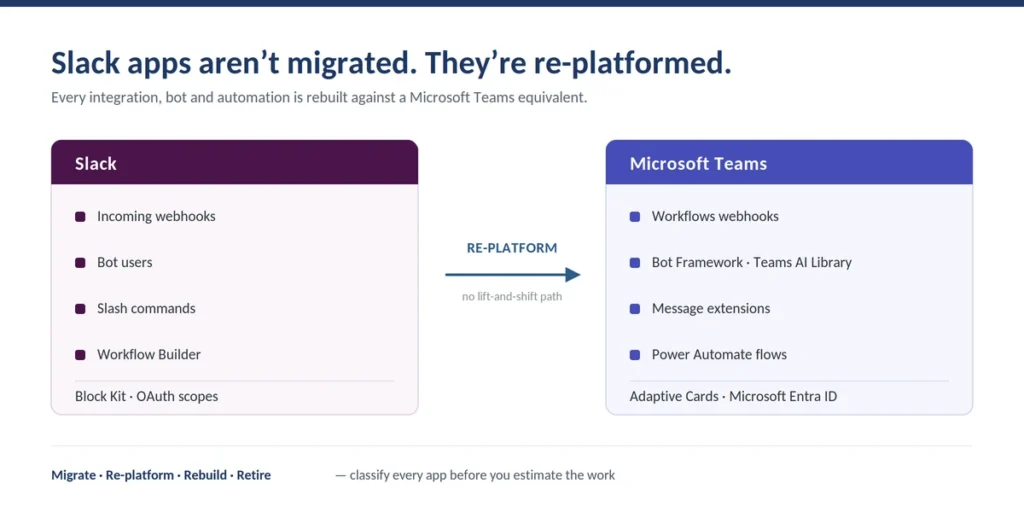
Slack apps cannot be migrated to Microsoft Teams. Slack and Teams are built on different app architectures, so every integration, bot and automation has to be re-platformed rather than transferred. This guide covers how to inventory your Slack apps, which ones map to a native Teams equivalent, and how to rebuild the rest using Workflows, Power Automate, Copilot Studio and the Bot Framework – including what changed when Microsoft retired Office 365 Connectors in May 2026.
Most organisations discover this late. The content migration gets planned in detail, and then someone asks what happens to the Jenkins build notifications, the deployment approvals, the on-call routing and the fifteen-step onboarding workflow that HR built in Workflow Builder three years ago. Those are business processes, not chat history, and they need their own workstream inside an enterprise Slack to Teams migration.
What follows is the approach we use on enterprise migrations, including the integrations that give teams the most trouble in practice: Jenkins pipelines, Splunk alerting, MuleSoft, SaltStack and custom bots with behaviour that has no Teams equivalent out of the box.
Can Slack apps be migrated to Microsoft Teams?
No. Slack apps cannot be migrated to Microsoft Teams directly, because the two platforms use incompatible app models. Slack integrations rely on bot users, slash commands and incoming webhooks, while Teams uses Power Automate flows, Adaptive Cards, message extensions and the Bot Framework. Each Slack app must be matched to a native Teams app, rebuilt, or retired.
That distinction matters commercially as well as technically. A migration tool can move the messages your apps posted into Slack channels. No tool converts the app itself. Vendors who describe “migrating your Slack integrations” are almost always describing the former, and the gap between those two things is where migration timelines slip.
The useful mental model is that a Slack app is a set of outcomes, not a piece of software you relocate. Ask what result the app delivers into the channel — a build status, an approval, a customer record, an alert — and then find the shortest path to that same outcome in Teams. In a surprising number of cases that path is simpler than what Slack required.
What actually breaks when you move Slack integrations to Teams
Four things break when a Slack workspace is migrated to Teams without an app workstream: notification delivery stops, bots become unreachable, slash commands disappear, and automations silently stop firing. Each has a different remedy, and only the fourth tends to get noticed late.
Notification relay. Anything posting into Slack through an incoming webhook — CI/CD pipelines, monitoring, ticketing, deploy bots — stops posting the moment the workspace is decommissioned. This is the largest category by volume and the easiest to fix, because it is a URL change plus a payload check rather than a rebuild.
Interactive bots. Any bot users interact with conversationally must be rebuilt. There is no export path, no shim, and no compatibility layer. Budget engineering time for these specifically, and expect the count to be smaller than people assume once you inventory actual usage.
Slash commands. Teams has no direct equivalent to Slack slash commands. The functionality maps to message extensions, bot commands or Adaptive Card actions depending on what the command did. Commands that gathered input map cleanly to message extensions; commands that triggered a backend job map to a bot or a flow.
Workflow automations. Workflow Builder automations are the ones that break quietly. Nothing errors, nothing alerts — an approval simply never reaches anyone, and the failure surfaces weeks later when someone asks why a request was never actioned. Inventory these before cutover, not after.
A fifth item is often confused with the four above but behaves differently: the message history your apps and bots posted can be migrated, even though the apps cannot. Fidelity varies sharply by tool, which we cover further down and in why Slack to Teams migrations are harder than they look.
Slack app architecture vs Microsoft Teams app architecture
Slack and Teams solve the same integration problems with different primitives. Slack centres on webhooks, bot users and Block Kit. Teams centres on Power Automate, Adaptive Cards and the Bot Framework, with identity handled through Microsoft Entra ID rather than Slack OAuth scopes. Mapping between the two is what re-platforming actually means.
| Capability | Slack | Microsoft Teams (2026) |
|---|---|---|
| Notification relay | Incoming Webhooks | Workflows webhook, powered by Power Automate. Office 365 Connectors were retired in May 2026. |
| Conversational bot | Bot users built on the Slack API | Azure Bot Service with the Bot Framework, or the Teams AI Library |
| Low-code bot | Workflow Builder plus third-party tools | Microsoft Copilot Studio |
| Command invocation | Slash commands | Message extensions, bot commands, or Adaptive Card actions |
| Automation | Workflow Builder | Power Automate flows |
| Embedded app surface | Slack app home | Teams tabs and personal apps |
| Rich message formatting | Block Kit | Adaptive Cards. MessageCard payloads are accepted, but HttpPost action buttons do not work. |
| Identity and permissions | Slack OAuth scopes | Microsoft Entra ID app registration with delegated Microsoft Graph scopes |
| Governance | Workspace admin app approvals | Power Platform Center of Excellence with DLP policies |
One structural difference is worth planning around early. Slack apps are installed per workspace; Teams apps and flows live in a tenant with Power Platform governance attached. That means app re-platforming touches your DLP policy and environment strategy, not just the channel. If you have not stood up a Power Platform CoE, do it before the rebuild work starts rather than during it — this sits at step three of our Slack to Teams migration methodology.
Build your Slack app inventory before you migrate
Start every Slack app migration with an inventory, not a rebuild. Export the full list of installed apps and custom integrations from your Slack workspace admin page, record how many channels each one is configured in, and classify every entry before any engineering work begins. Most enterprise Slack workspaces carry a long tail of integrations nobody has used in a year.
This step is skipped more often than any other, and it is the one that determines the size of the project. A workspace with 90 installed apps sounds like a large re-platforming effort. In practice, once you filter for apps that have posted in the last ninety days, the number that genuinely need attention is usually between fifteen and thirty. Everything else is retired, not rebuilt.
How to export your Slack app and integration list
Slack exposes the list you need at a single admin URL, and it includes the configuration count you will use to prioritise:
- Navigate to
<your-workspace>.slack.com/apps/manageas a workspace admin. This lists every installed app and custom integration, along with the number of configurations for each, as part of Microsoft’s Slack migration guidance. - Record app name, owner, configuration count, and the channels involved. If your administrator has restricted app usage, confirm you are seeing the complete list rather than a filtered view.
- Separate custom integrations from marketplace apps. Custom integrations vary enormously in how migratable they are; marketplace apps usually have a direct Teams equivalent or none at all.
- Pull posting activity for the last ninety days per app. An app with a configuration but no recent posts is a retirement candidate, not a migration candidate.
- For each remaining app, write one sentence describing the outcome it delivers — not how it works. That sentence is what you will rebuild against.
On larger engagements we run this analysis in Power BI across channels, messages, users, apps and workflows, which makes the retire-versus-rebuild decision evidential rather than anecdotal. That assessment and analysis approach typically removes a third to a half of the apparent scope before a single integration is touched.
The four-way triage: migrate, re-platform, rebuild or retire
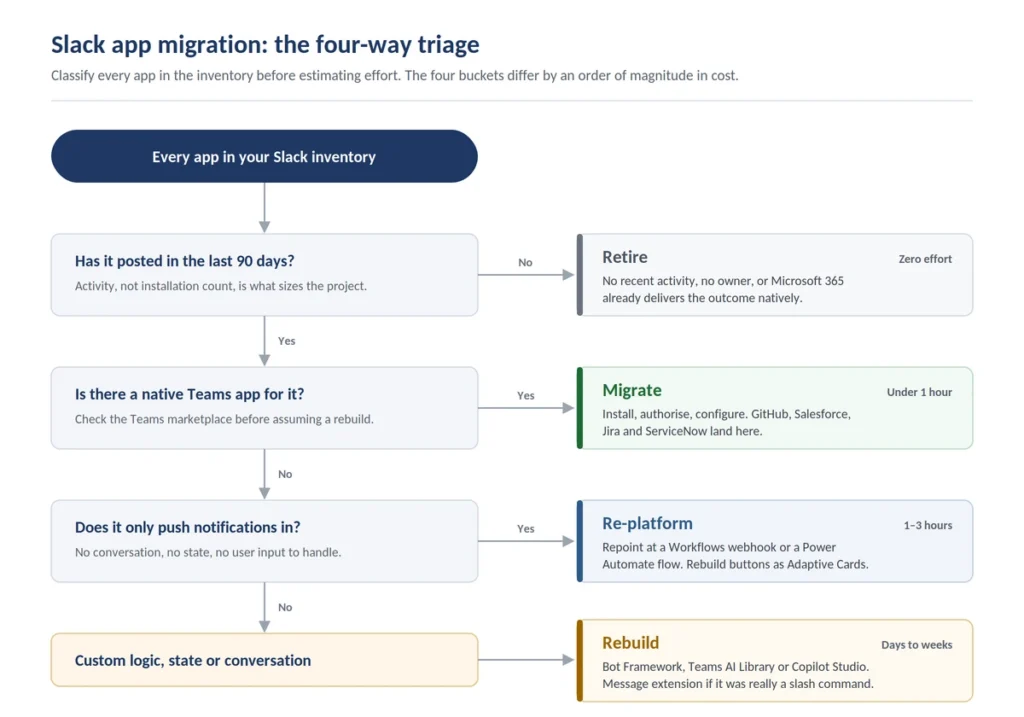
Every app in the inventory falls into one of four buckets. Assign the bucket before estimating effort, because the four differ by an order of magnitude in cost.
| Bucket | What it means | Typical effort |
|---|---|---|
| Migrate | A native Teams equivalent exists in the marketplace. Install, authorise, configure. | Under an hour per app. GitHub, Salesforce, Jira, ServiceNow and most major SaaS tools land here. |
| Re-platform | The app pushes notifications in. Repoint it at a Workflows webhook or a Power Automate flow. | One to three hours per integration, longer where payloads carry interactive elements. |
| Rebuild | Custom bot or logic with no equivalent. Rebuild on Bot Framework, Teams AI Library or Copilot Studio. | Days to weeks per bot, depending on statefulness and backend integration. |
| Retire | No recent activity, no owner, or the outcome is now delivered natively by Microsoft 365. | Zero. This is usually the largest bucket and the one that funds the rest of the work. |
Be deliberate about the retire bucket. A migration is the only moment when an organisation has both the mandate and the visibility to remove accumulated integration debt. Teams delivering the same outcome through Planner, Approvals, Loop or Copilot does not need the Slack-era tool rebuilt at all.
2026 update: Office 365 Connectors are gone
Microsoft permanently disabled Office 365 Connectors in Microsoft Teams between 18 and 22 May 2026, as part of its Secure Future Initiative. Any Slack-to-Teams migration guidance that tells you to install a Jenkins, GitHub or RSS connector from the Teams app store is out of date. The replacement is the Workflows app in Teams, powered by Power Automate.
This matters more than a normal deprecation, for two reasons. First, connectors were the default answer to “how do I get webhook notifications into Teams” for the better part of a decade, so an enormous amount of published guidance — including from vendors currently selling migration tooling — still recommends them. Second, Microsoft extended the deadline five separate times between 2024 and 2026, which means even guidance written recently may reasonably have assumed another reprieve was coming.
The retirement ran in phases across nearly two years. New connector creation was blocked from 15 August 2024. Existing webhook connectors then had to move to a new URL structure by 31 January 2025, itself an extension of an earlier December 2024 deadline. Microsoft pushed the full retirement from the end of 2025 to 31 March 2026, then to 30 April 2026, before confirming the final phased disablement on 18–22 May 2026.
If you are planning a migration now, the practical consequence is straightforward: build every notification path on Workflows from the start. If you are inheriting a Teams tenant that predates the retirement, audit for orphaned connector configurations, because they fail silently rather than raising errors.
What replaced Office 365 Connectors: the Workflows app
The Workflows app in Teams creates Power Automate flows from templates directly inside a channel. For notification relay it does the same job a connector did, with three differences worth knowing before you plan the work.
- MessageCard payloads are accepted. Workflows webhooks handle MessageCard-formatted payloads without reformatting, so many existing payload builders can be repointed at a new URL rather than rewritten. This removed most of the migration pain that made the original announcement so unpopular.
- Interactive buttons are not supported. MessageCard payloads render their content, but HttpPost action buttons do not work. Anything requiring buttons or input fields must be rebuilt as an Adaptive Card, with the flow customised to handle the response coming back from the card.
- Shared and private channels both work now. The Workflows bot can post into shared channels, which matters if you are landing on a Shared Channels architecture in Teams. Private channels are supported through the Power Automate portal, with selection directly inside the Workflows app in Teams rolling out from 20 April 2026. Earlier guidance describing either as unsupported is out of date.
- Webhook messages post as the Workflows bot. This is the limitation that catches Slack teams out, and it has no workaround. Slack incoming webhooks let each integration set its own display name and icon, so a single channel could show visually distinct senders for Jenkins, Splunk and PagerDuty. Workflows webhooks do not support custom bot icons or display names — every webhook message arrives as the default Workflows (Flow) bot. If your Slack channels relied on sender identity to tell alerts apart, move that signal into the card itself using the title, a colour bar or a facts block.
Where the requirement goes beyond relaying a message — conditional routing, approvals, enrichment from another system, writing back to a source of record — build a full Power Automate flow rather than a template webhook. The distinction is roughly the same one Slack drew between an incoming webhook and a Workflow Builder automation.
How to convert a Slack incoming webhook to a Teams Workflows webhook
Converting a webhook takes around twenty minutes per integration once the pattern is established. The steps below apply to Jenkins, Splunk, monitoring tools, and anything else posting JSON into a Slack channel.
- Inventory the Slack webhook. Record the source system, the target Slack channel and the payload format for each incoming webhook in your workspace.
- Create a Workflows webhook in the destination Teams channel. Open the channel menu, select Workflows, and create a flow from the webhook template. For a private channel, create the flow from the Power Automate portal instead.
- Copy the generated HTTP POST URL. This URL replaces the Slack incoming webhook URL in the source system.
- Repoint the source system. Update the notification configuration in Jenkins, Splunk or the source application to post to the new Workflows URL.
- Convert interactive elements. MessageCard payloads pass through unchanged, but any buttons must be rebuilt as Adaptive Cards.
- Test and decommission. Fire a test event, confirm delivery and formatting in the Teams channel, then disable the original Slack webhook so you do not leave a live path into a workspace you are retiring.
Re-platforming Slack Workflow Builder automations to Power Automate
Slack Workflow Builder automations map to Power Automate flows, but not one-to-one. A Slack workflow bundles its trigger, form and posting logic into a single object, while Power Automate separates trigger, condition, action and approval. Re-platforming means decomposing each Slack workflow into those parts and rebuilding it, which typically takes two to six hours per workflow depending on branching.
Start by exporting each workflow’s definition and writing down three things: what starts it, what it collects, and where the output goes. Almost every Slack workflow reduces to that triple, and once it does the Power Automate build becomes mechanical.
| Slack Workflow Builder | Power Automate equivalent | Notes |
|---|---|---|
| Emoji reaction trigger | Teams “When a message reaction is added” trigger | Closest direct match; reaction semantics differ slightly |
| New channel member trigger | Teams “When a new team member is added” | Fires at team rather than channel level in some configurations |
| Scheduled trigger | Recurrence trigger | Direct equivalent, with richer scheduling options |
| Link or shortcut trigger | Manual trigger or message extension | Consider whether a Teams tab is a better home for the entry point |
| Form step | Adaptive Card with input fields, or a Microsoft Form | Adaptive Cards keep the interaction in the channel; Forms are better for longer inputs |
| Send message step | Post message in a chat or channel | Direct equivalent |
| Approval-by-reply pattern | Approvals action | This is usually an upgrade — approvals become auditable rather than inferred from a reply |
| Send to external service | Named connector or HTTP action | Check the action against your DLP policy before building |
Two patterns are worth calling out. Approvals almost always improve in the move, because Power Automate Approvals produce an auditable record where a Slack thumbs-up reply does not. And multi-branch workflows that were painful in Workflow Builder are usually easier in Power Automate, so resist rebuilding the Slack workaround rather than the underlying requirement.
Rebuilding Slack bots in Microsoft Teams
Slack bots do not work in Microsoft Teams and must be rebuilt. There are three routes, and choosing correctly is the difference between a two-day job and a two-week one. Assess by what the bot does, not by how it was built in Slack.
The pro-code route: Bot Framework and the Teams AI Library
Bots with real logic, state or backend integration are rebuilt on Azure Bot Service. The Microsoft Bot Framework remains the established path and supports Python, Node.js and .NET. For new conversational agents, the Teams AI Library is now the recommended starting point, because it handles the Teams-specific plumbing and makes it straightforward to add language-model capabilities the Slack original did not have.
Once deployed, a Teams bot can operate in channels, group chats and one-to-one conversations, and can authenticate against Microsoft Entra ID to act on behalf of the invoking user. That last capability is often what makes the rebuild worthwhile: bots that had to hold their own credentials in Slack can use delegated Graph permissions in Teams.
The low-code route: Microsoft Copilot Studio
Bots that answer questions, route requests or walk a user through a decision tree rarely need code. Microsoft Copilot Studio, formerly Power Virtual Agents, lets business owners rebuild these directly, which matters when the original Slack bot was owned by a team outside engineering.
This is the right default for the long tail. On a typical enterprise workspace, the majority of bots that survive triage are answering the same twenty questions, and handing them back to their business owner in Copilot Studio removes a permanent engineering dependency rather than recreating one.
When a Slack bot should become a message extension instead
Not every Slack bot should become a Teams bot. If the Slack app existed mainly to expose a slash command that looked something up or submitted a form, a Teams message extension is a better fit — it appears in the compose box, returns results inline, and requires no conversational design at all.
Apply a simple test. If users typed a command and got a result, build a message extension. If users had a conversation, build a bot. If users were notified and did nothing, you do not need either — build a flow.
Slack integration to Teams mapping reference
The table below maps the integrations that appear most often in enterprise Slack workspaces to their Teams destination and migration method. Detailed walkthroughs for the harder cases follow beneath it.
| Slack integration | Teams destination | Migration method |
|---|---|---|
| Jenkins | Workflows webhook | Rebuild the notification step against a Workflows webhook URL using an Adaptive Card payload |
| Jenkins (Groovy pipeline) | Power Automate flow | teamSend helper class calling a parameterised flow; supports updating a parent post |
| TeamCity | Power Automate flow | Script parses build output, forms an Adaptive Card, triggers the flow |
| GitHub | GitHub for Teams app | Native app install; authorise repositories; configure PR, commit and issue notifications |
| Salesforce | Salesforce for Teams app | Native app plus Teams tabs for dashboards; Power Automate for record-level events |
| Splunk | Power Automate flow | One flow per alert, because the default Splunk payload cannot be modified |
| MuleSoft | Built-in Teams connector | Delegated access via a Microsoft Entra ID app registration |
| SaltStack | Power Automate flow | Script parses process output, builds Adaptive Card JSON, triggers the flow |
| Jira, ServiceNow, PagerDuty | Native Teams app or flow | Check the Teams marketplace first; fall back to a Workflows webhook |
| RSS feeds | Custom bot or flow | Connector-based RSS is retired; use a subscription bot or a Power Automate RSS trigger |
| Custom app calling external APIs | Message extension or flow | Assess the outcome delivered, then choose the lightest Teams equivalent |
| Custom chat-driven app | Teams bot | Rebuild on Bot Framework or the Teams AI Library |
Jenkins build notifications in Microsoft Teams
Jenkins is the most common Slack integration in engineering-led workspaces and the one people most often try to move using retired guidance. There is no Jenkins connector to install any more. The current method is to create a Workflows webhook in the destination channel and repoint the Jenkins notification step at the generated URL.
For straightforward success, failure and merge notifications, that is the whole job. Configure build triggers to post on the events you care about, format the payload as an Adaptive Card, and confirm rendering before you decommission the Slack path. Where you need more than a message — a deployment approval, a ticket created on failure, a routing decision based on which branch broke — put a Power Automate flow between Jenkins and the channel and handle the logic there.
Jenkins Groovy pipelines: the teamSend helper pattern
Complex Jenkins pipelines written in Groovy need a different approach, because notifications are emitted from pipeline code rather than configured in the UI. The pattern we use on enterprise migrations gives Groovy pipelines a drop-in replacement for Slack’s slackSend.
- Create a Power Automate flow that accepts the channel name, the Teams group name and application-specific details as parameters, and posts an Adaptive Card to the named channel.
- Create a Groovy MS Teams helper class exposing a
teamSendmethod that takes those same parameters and triggers the flow. Teams that usedslackSend()will recognise the shape immediately, which keeps the pipeline changes small and reviewable. - Invoke the helper from the pipeline script wherever the Slack call previously sat, so notifications fire on completion of the relevant pipeline task.
- Extend the flow to edit the parent post rather than posting again, updating overall status once all child tasks complete. This produces a single self-updating build post instead of a stream of replies, which is a genuine improvement on the Slack behaviour it replaces.
TeamCity, Splunk, SaltStack and MuleSoft
TeamCity. Create a Power Automate flow that takes the channel name and Teams group name as parameters and posts an Adaptive Card. Then write a script that parses the TeamCity output, forms the card payload and calls the flow. The pattern is deliberately identical to the Jenkins Groovy approach, so build one and reuse it.
Splunk. Splunk alerting has one constraint that shapes the whole design: the default alert payload cannot be modified. A pre-configured Power Automate template can parse that payload, but because the payload is fixed, you need a separate flow for each alert configuration rather than one flow handling all of them. Plan the flow count accordingly — an environment with sixty Splunk alerts needs sixty flows, and that is a real line item, not a rounding error. Where simple relay is all that is required, a Workflows webhook is sufficient; reach for custom development only when the alert logic genuinely demands it.
SaltStack. Same shape as TeamCity. A script parses the SaltStack process output or calls the relevant API, constructs Adaptive Card JSON, and triggers a Power Automate flow that posts to the target channel.
MuleSoft. MuleSoft ships a built-in Microsoft Teams connector with actions for posting messages, so this one is configuration rather than development. It uses delegated access, which means you need a client ID, client secret and tenant ID. Register an application in Microsoft Entra ID, formerly Azure Active Directory, and grant delegated permissions for ChatMessage.Send and ChannelMessage.Send. Add the web redirect URIs to the app registration and map the Teams IDs. As a prerequisite, add a service account to the relevant teams and use it to authenticate during setup.
GitHub and Salesforce
These two are the easiest in the whole inventory, because both have maintained native Teams apps. Install the GitHub for Teams app, authorise the account, select the repositories to monitor, and configure notifications for pull requests, commits and issue updates. Issues can be created and managed from within a Teams conversation, and Power Automate can trigger downstream workflows from GitHub events where you need more than notification.
Salesforce follows the same pattern. Install the Salesforce for Teams app, authenticate, grant permissions and enable notifications in the relevant channels. Pin reports and dashboards as Teams tabs, and use Power Automate to sync events, tasks and deal updates where Slack previously used its own Salesforce integration.
Migrating custom Slack apps: patterns from real enterprise migrations
Custom Slack apps are where re-platforming stops being mechanical. Some map to Power Automate, some become message extensions, and a minority need to be rebuilt as bots because Power Automate cannot express what they did. Two patterns from delivered migrations illustrate the boundary.
The RSS subscription bot. Connector-based RSS delivery no longer exists in Teams, so feed subscriptions that lived in Slack need a new home. We rebuilt this as a Teams command bot: users subscribe and unsubscribe to feed URLs directly within Teams, and the bot monitors subscribed feeds and posts new content in real time. A Power Automate RSS trigger covers simpler cases, but a bot is the better answer when users need to manage their own subscriptions without raising a request.
The message-listening support bot. Some Slack apps rely on behaviour Power Automate cannot reproduce. One support bot we rebuilt needed to process every root post in a channel or chat without any trigger word or mention, while deliberately ignoring replies unless explicitly @mentioned. Passive listening with that reply-versus-root distinction is not expressible as a flow, so it was rebuilt as a Teams bot. The wider lesson: when a Slack app’s defining behaviour is how it listens rather than what it posts, expect a bot rebuild. The Tribute Technology case study covers this pattern in a delivered migration.
For custom apps generally, work through three questions in order. Does Teams already deliver this outcome natively? If not, can Power Automate express the logic? If not, does it need a bot or a message extension? Most organisations find the first question retires more apps than they expected.
What Slack app and bot message history survives a migration
Message history posted by Slack apps and bots can be preserved during migration, though fidelity varies sharply by tool. Native Microsoft migration does not support direct or group messages at all, and several third-party tools lose authorship and timestamps on app-generated posts, which turns years of build history and alert records into undated, unattributed text.
This is worth checking specifically, because app-posted content is where fidelity gaps show up first. Bot and app messages often carry unusual formatting, attachments and threading that migration tools handle less reliably than ordinary user messages. If your Slack channels are the de facto record of deployments, incidents or approvals, that content has compliance value and its metadata matters.
Three things to validate before choosing an approach: whether app and bot messages are migrated at all, whether the original author and timestamp are written to the correct fields rather than approximated in the message body, and whether direct and group messages are in scope. Our Slack to Teams migration tool comparison sets out how native Microsoft tooling, third-party ISV products and full-fidelity migration differ on each of these, based on independent testing.
How long Slack app re-platforming takes and what drives the cost
Slack app re-platforming is usually scoped in weeks, not months, and the driver is complexity rather than user count. A typical enterprise workspace has 40 to 120 installed apps, of which fewer than 20 are genuinely in active use. Native app swaps take under an hour each, webhook conversions take one to three hours, and custom bot rebuilds take days to weeks.
Four factors move the estimate more than anything else:
- The size of the retire bucket. This is the single largest variable. An honest inventory routinely removes a third to a half of the apparent scope before any build work starts.
- Alert-per-flow constraints. Integrations like Splunk that require one flow per alert scale linearly with alert count. Sixty alerts means sixty flows, regardless of how simple each one is.
- Interactive payloads. Notifications that are purely informational convert quickly. Anything with buttons requires an Adaptive Card rebuild.
- Custom bot statefulness. A stateless question-and-answer bot is a Copilot Studio afternoon. A bot holding conversation state and calling internal systems is a development project.
Sequencing matters as much as effort. App re-platforming should run in parallel with the content migration rather than after it, so that integrations are live in Teams on the day the Slack workspace is decommissioned. Discovering the workstream after cutover is what turns a straightforward project into an outage.
If you want a scoped estimate against your own workspace, we start with an app and workflow inventory and return a triage with effort ranges before any commitment. Talk to a Slack migration engineer.
Common mistakes when migrating Slack apps to Microsoft Teams
- Treating apps as part of the content migration. Content and integrations are separate workstreams with different owners and different skills. Merging them in the plan means the integrations get discovered late.
- Following connector-based guidance. Most published instructions on this topic, including from established vendors, still describe Office 365 Connectors. Those instructions no longer work.
- Rebuilding everything. Skipping the retire decision means paying to recreate integrations nobody has used in a year.
- Recreating Slack workarounds. Rebuild the requirement, not the Slack-era implementation of it. Approvals in particular are usually better in Power Automate than what they replace.
- Ignoring Power Platform governance. Dozens of new flows built without DLP policies or an environment strategy creates a governance problem that outlives the migration.
- Leaving app owners out. The people who built the Slack workflows know what they were for. Advisory sessions, office hours and code samples for channel owners move faster than a central team reverse-engineering intent.
- Decommissioning Slack before validating. Keep the Slack path live in parallel until each converted integration has fired successfully in production. Notification failures are silent.
For the broader planning picture beyond integrations, see our guide to the ten common Slack to Teams migration pitfalls.
Frequently asked questions
No. Slack apps cannot be transferred to Microsoft Teams because the platforms use different app architectures. Each Slack integration must be matched to a native Teams app, rebuilt using Power Automate or the Bot Framework, or retired. App-posted message history can still be migrated even when the app itself cannot.
Workflows webhooks, powered by Power Automate, replace Slack incoming webhooks in Microsoft Teams. Office 365 Connectors previously filled this role but were permanently disabled in May 2026. Workflows webhooks accept MessageCard payloads without reformatting, but they do not support action buttons or custom sender names and icons.
Microsoft retired Office 365 Connectors in Teams under its Secure Future Initiative, blocking new connectors from August 2024 and permanently disabling existing ones between 18 and 22 May 2026. Organisations still relying on connector webhooks must move those integrations to the Workflows app in Teams.
Slack bots do not work in Microsoft Teams and must be rebuilt. Pro-code bots move to Azure Bot Service using the Bot Framework or the Teams AI Library. Simpler question-and-answer bots can be recreated in Microsoft Copilot Studio, formerly Power Virtual Agents, without writing code.
Slack Workflow Builder automations cannot be exported into Power Automate, but they can be re-platformed. Each workflow is decomposed into its trigger, conditions, actions and approvals, then rebuilt as a Power Automate flow. Most workflows take two to six hours depending on branching complexity.
Message history posted by Slack apps and bots can be preserved during migration, though fidelity varies sharply by tool. Native Microsoft migration does not support direct or group messages at all, and several third-party tools lose authorship and timestamps on app-generated posts.
Slack app re-platforming typically runs in parallel with the content migration and is scoped in weeks. Native app swaps take under an hour, webhook conversions one to three hours, and custom bot rebuilds days to weeks. Total effort depends on how many apps are genuinely in active use.
No. Messages sent through a Workflows webhook always post as the default Workflows (Flow) bot. Custom display names and icons, which Slack incoming webhooks supported per integration, are not available in Microsoft Teams. Differentiate senders inside the Adaptive Card instead, using the title, a colour bar or a facts block.
No migration tool converts Slack apps into Teams apps automatically, because the underlying app models are incompatible. Migration tools move message content, including messages posted by apps and bots. The integrations themselves require assessment and re-platforming, which is engineering work rather than a data transfer.
Get help with Slack app and workflow re-platforming
Netwoven has been delivering Slack to Teams migrations for over seven years, including workflow and app re-platforming into Power Automate and Microsoft 365. We support app owners with advisory sessions, office hours, code samples and best-practice patterns rather than handing them a spreadsheet of broken integrations. See our enterprise Slack to Teams migration service, or talk to a migration engineer about scoping your app inventory.

Our organization has recently transitioned our company-wide collaboration tool from Slack to Microsoft Teams. We would like to inquire about migrating our existing Slack data to Microsoft Teams while preserving as much of the original structure and content as possible.
We are currently using the Slack Pro plan, with approximately 97 channels (exact number may vary). At present, our employees have already started creating and using new channels within Microsoft Teams.
Could you please provide us with the following information:
* The overall migration process and recommended approach
* Expected timeline for a migration of this scale
* Pricing and quotation details
* Any prerequisites or limitations we should be aware of
We are available to communicate further via email, and would appreciate your guidance on the next steps.