From Configured Intelligence to Purpose-Built Experiences
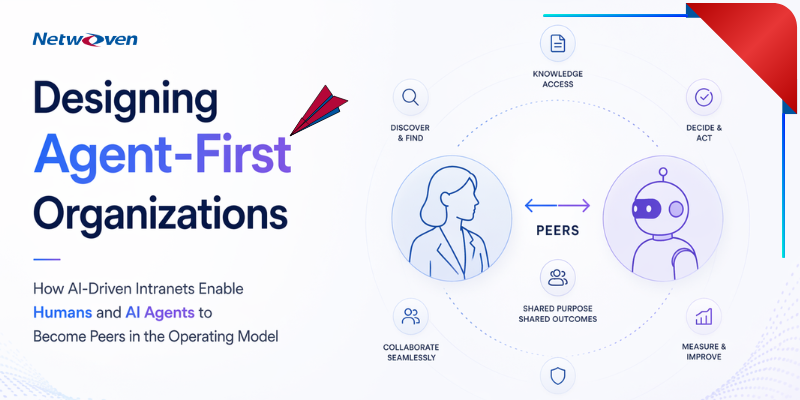
Across this series, we have followed the intranet’s evolution from a static destination to an intelligent workplace layer. Chapter 1, Beyond the Portal, introduced the intranet as a digital colleague. Chapter 2, The Rise of the AI-Driven Intranet, positioned it as a governed enterprise command center. Chapter 3, Designing Agent-First Organizations, explored how people and AI agents work together through the intranet as their shared operating environment.
Now we move from vision to implementation. Agent-first intranets need more than configuration – they need purpose-built intelligence: custom AI web parts, secure orchestration, and experiences designed around real business workflows.
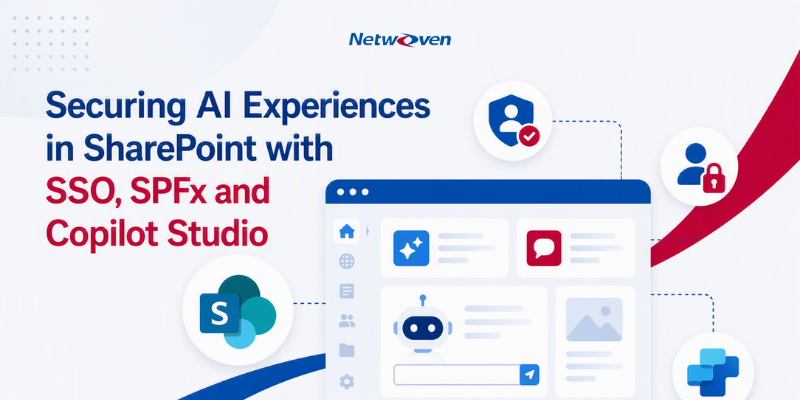
That starts with trust. An AI experience embedded in SharePoint must recognize the user, respect permissions, and work without repeated sign-ins. This chapter focuses on how Single Sign-On (SSO), SPFx, Copilot Studio, and personalized web parts come together to deliver secure, useful AI experiences inside the modern intranet.
Transforming Workplace Access
Imagine opening a SharePoint Modern Page and finding the right AI assistance already available – no extra login, no context switching, and no separate tool to launch. That is the business value of SSO: it makes secure access feel invisible while keeping enterprise controls intact.
Why Single Sign-On Is a Game Changer
SSO is more than convenience. It reduces friction, strengthens identity-based access, and gives Copilot Studio agents the authenticated context they need to personalize interactions. For business users, it feels simple. For IT, it provides a governed foundation for secure AI adoption.
Microsoft Copilot Studio Authentication: Choose Your Path
Microsoft Copilot Studio supports three authentication models. The best option depends on where the agent is hosted, how much user context is required, and how tightly the experience must align with enterprise security policies.
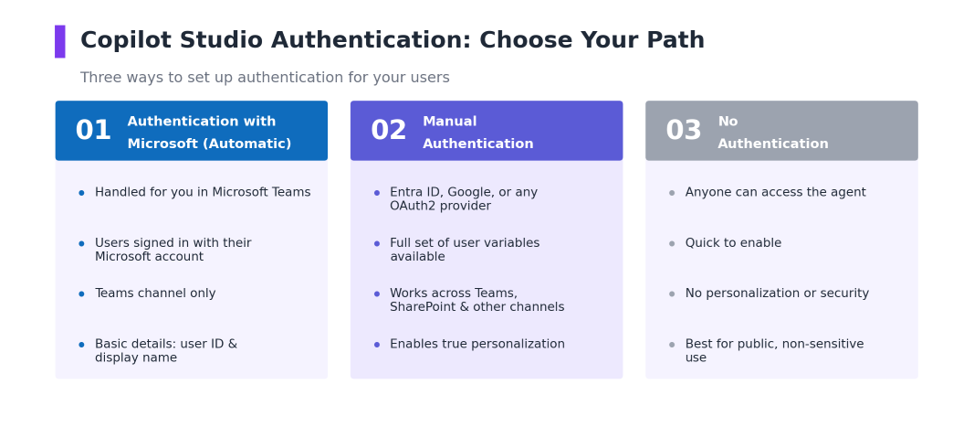
Authentication with Microsoft (Automatic): Best suited for Microsoft Teams, where sign-in is handled automatically. It is simple to use but limited to the Teams channel and basic user details.
Manual Authentication: Recommended when the agent needs to run across SharePoint or other channels with richer personalization. It supports providers such as Microsoft Entra ID and OAuth2-based services, and exposes user variables including ID, display name, access token, and login status.
No Authentication: Useful only for public or low-risk scenarios. It removes identity validation, which means no personalization and no permission-aware experience.
The Power of Manual Authentication
Manual authentication gives enterprises the control needed for secure, permission-aware AI experiences. Common options include:
- Microsoft Entra ID V2 with federated credentials – sign-in using federated identity.
- Microsoft Entra ID V2 with certificates – certificate-based authentication for stronger security.
- Microsoft Entra ID V2 with client secrets – authentication using an application secret.
- Microsoft Entra ID – standard enterprise identity integration.
- Generic OAuth 2 – integration with any OAuth2-compliant identity provider.
With manual authentication, Copilot Studio can use key user variables in topic authoring:
- User.Id – the unique ID of the user.
- User.DisplayName – the name shown for the user.
- User.AccessToken – a temporary code that lets the user access protected resources.
- User.IsLoggedIn – shows if the user is logged in or not.
A Glimpse into the SSO Architecture
The architecture connects SharePoint, SPFx, Copilot Studio, Microsoft Entra ID, and Microsoft Graph through a secure identity flow. When a user opens the SharePoint page, the SPFx component can silently obtain the user context, pass the required token information, and allow the Copilot Studio agent to respond within the right permission boundary.
- User Access and Identity Validation
The user opens the SharePoint Modern Page and signs in through Microsoft Entra ID, which validates the user’s identity. - Token Acquisition in SPFx
The SPFx component silently obtains the authenticated user token without requiring another sign-in. - Secure Token Exchange with Copilot Studio
SPFx passes the validated token to Copilot Studio, where the token is verified through the configured app registration. - Trusted AI Interaction
Copilot Studio trusts both the user and the host application, then responds using the user’s authorized context. - Permission-Aware Experience
Secure tokens enable the agent to deliver responses that remain aligned with the user’s permissions and enterprise access boundaries.
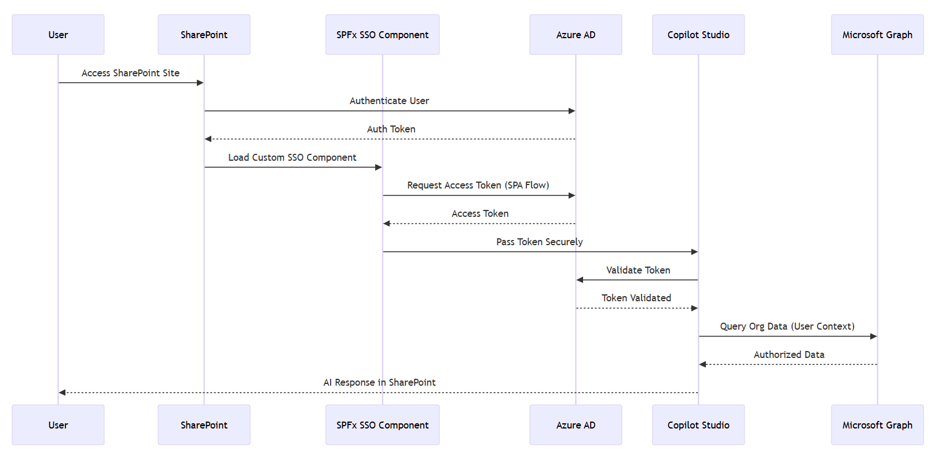
Azure App Registrations and Copilot Studio Authentication Setup
A secure SSO implementation depends on a few important configuration steps:
- Register two Microsoft Entra ID applications – one for user authentication and one for the SharePoint-hosted experience.
- Expose the required API scope and assign permissions such as Microsoft Graph access for the Copilot agent.
- Configure the token exchange URL in Copilot Studio so identity information can be exchanged securely.
- Add the SharePoint redirect URL and grant the custom scope to the SharePoint application.
The SPFx Client
The SPFx client becomes the bridge between SharePoint and the AI experience. Built with React, it can host a Copilot Studio interaction, pass authenticated user context, and render a branded experience directly inside a SharePoint page.
This pattern allows organizations to deliver AI where work already happens. Users stay in SharePoint, while authentication, Microsoft Graph access, and Copilot interactions operate behind the scenes through a secure and scalable architecture.
SSO Integration: The Simplified Process Flow
From the user’s perspective, the experience is seamless. Behind the scenes, a secure trust flow enables Copilot to understand who the user is and respond appropriately.
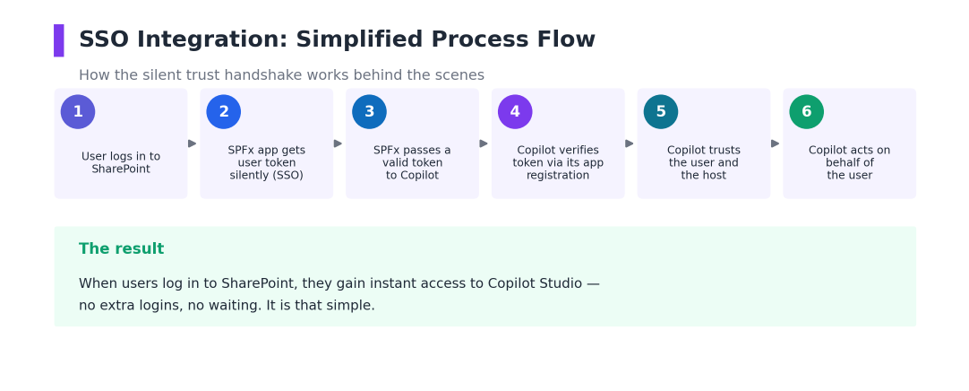
The result is a secure AI experience that feels native to SharePoint: users sign in once and start working.
The End Results
With SSO and SPFx in place, the intranet is no longer just hosting an AI chatbot – it becomes a secure canvas for delivering AI experiences exactly where employees need them. The same foundation can support different interaction models depending on the business scenario.
A floating chatbot works well when users need general help across the site. An embedded web part is more powerful when the experience must be contextual – for example, a project dashboard, a department landing page, or a personalized productivity panel. This is where the architecture becomes more interesting: the AI experience is no longer separate from the page; it becomes part of the page’s purpose.
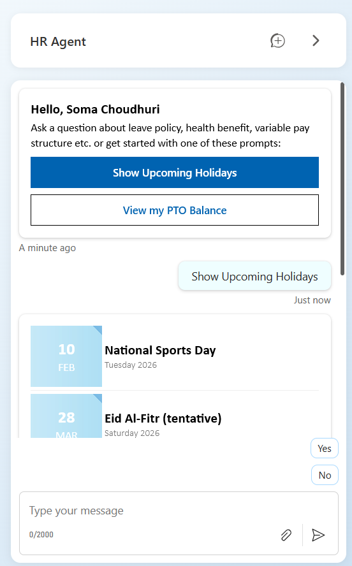
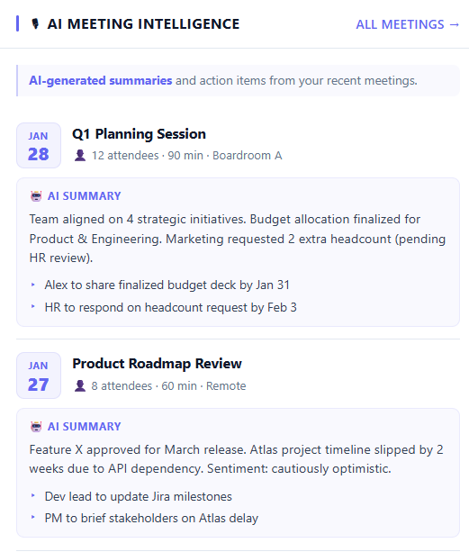
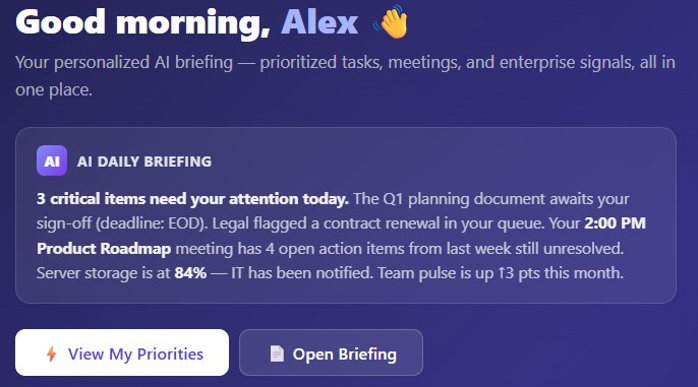
The “Daily Brief web part” is a good example of this shift. It takes the secure SSO pattern, adds Microsoft 365 context through Graph, and turns a normal SharePoint page into a proactive workspace that helps users start the day with clarity.
Daily Brief Web Part: A Personalized Start to the Workday
The Daily Brief web part brings this idea to life. Instead of asking employees to check Outlook, Teams, Planner, To Do, and meeting calendars separately, the web part presents a single, personalized snapshot of what matters today – key tasks, upcoming meetings, and important mails.
Technically, it is delivered through SPFx and the Copilot Chat API. The web part works within the user’s Microsoft 365 context, creates a secure conversation ID, and sends a focused prompt such as: “Prepare my daily brief across tasks, meetings, and mails.” Copilot returns a concise summary that can be rendered directly inside the SharePoint page.
The result is simple but powerful. Employees begin the day with a guided view of priorities, preparation points, and follow-ups. Business teams gain a reusable pattern for turning Microsoft 365 activity into actionable insight, while IT keeps the experience governed through SSO, permissions, and SharePoint-native deployment.
Business Benefits: The ROI Story
The ROI comes from combining secure access with useful, contextual experiences. SSO establishes trust; personalized AI web parts turn that trust into productivity by helping employees act faster on the information that matters.
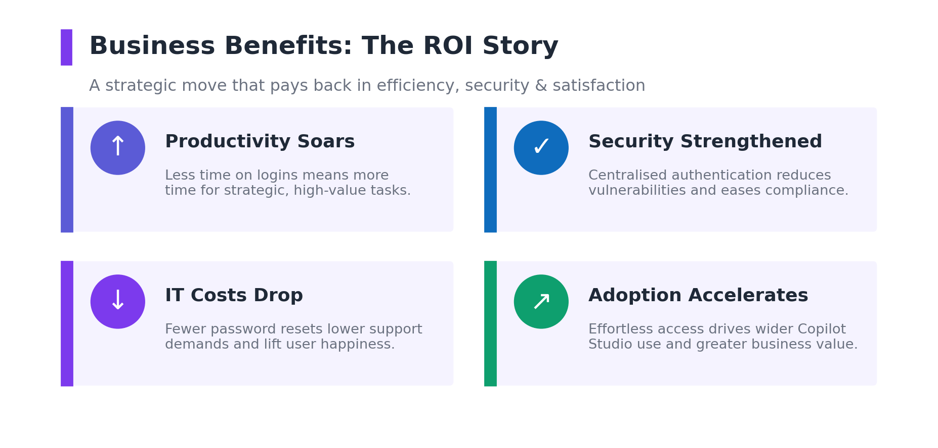
- Higher Productivity: Users spend less time signing in, switching tools, or searching for updates.
- Stronger Security: Identity-aware AI experiences operate within approved user and permission boundaries.
- Faster Adoption: AI appears inside familiar SharePoint pages, reducing change management effort.
- Scalable Business Value: The same SPFx and Copilot pattern can support future role-based or department-specific web parts.
Conclusion
Embedding Copilot Studio into SharePoint is no longer just about adding a chatbot. With SSO, SPFx, Microsoft Graph, and purpose-built web parts, organizations can deliver secure AI experiences that understand user context and support real work. The Daily Brief example shows the next step clearly: the intranet can become a personalized, action-oriented workspace where AI helps employees start faster, decide better, and stay focused.
Next Chapter
Building Custom AI Web Parts for the Agent-Driven Intranet – Part 2
Having secured and embedded our first purpose-built AI experiences in SharePoint, Chapter 5 shifts the focus to expanding the possibilities. It will showcase a new set of AI-enabled web parts purpose-built for intranet scenarios – demonstrating how intelligent components can actively understand user context, generate insights, automate interactions, and deliver highly personalized experiences. These web parts go beyond static UI elements, acting as embedded copilot APIs that bring enterprise knowledge, recommendations, and actions directly into the flow of work.
To design secure, personalized AI experiences in SharePoint, connect with the Netwoven team. Our specialists can help you plan the architecture, implement SSO, and build web parts that turn Microsoft 365 context into practical business value.