Introduction
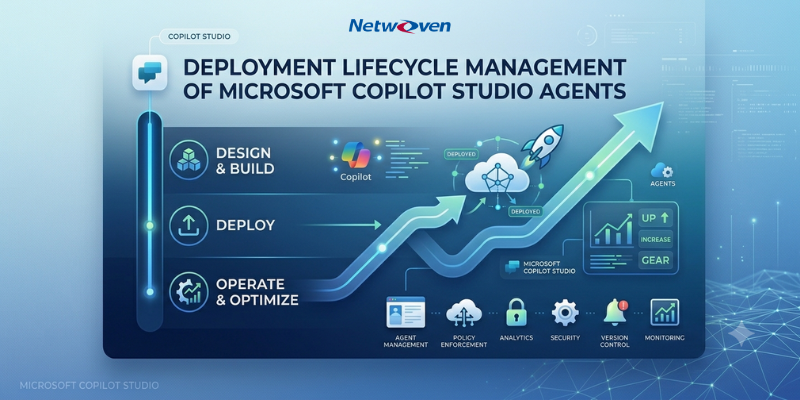
As Microsoft Copilot Studio agents move from early adoption into enterprise production workloads, the discipline of managing their deployment lifecycle becomes as important as the quality of the agents themselves. Without a structured promotion pathway, organisations encounter version drift between environments, uncontrolled releases into production, inadequate security governance, and the absence of an audit trail when issues arise.
Application Lifecycle Management (ALM) for Power Platform directly addresses these challenges. It provides a governed, repeatable framework for moving Copilot agents through development, validation, and production-with policy enforcement, human approval gates, and least-privilege access controls at every stage.
This article examines the complete ALM pipeline architecture for Copilot Studio agents: how environments are structured and why, how deployment stages are configured and sequenced, how the approval mechanism operates at a technical level, which Data Loss Prevention policies apply across environment groups, and which permissions are required at each stage to perform deployment operations.
Environment Architecture for Copilot Agent Pipelines
Environments in Power Platform are isolated tenancy boundaries-each contains its own Dataverse database, security roles, DLP policies, and deployed solutions. For Copilot agent ALM, a minimum of four environments is required: three that represent the deployment lifecycle (Development, QA, Production) and one dedicated host that orchestrates the pipeline itself.
The Three-Stage Deployment Environments
| Development Dev Environment | The authoring environment. Solutions are unmanaged here, granting makers full edit access to topics, actions, knowledge sources, and channel integrations. DLP policies are intentionally permissive to support rapid iteration. Production data must never be present in this environment. |
| QA / Test QA Environment | The first target environment. Solutions arrive as managed packages-read-only components that can only be updated through the pipeline. Used for integration validation, user acceptance testing, and security control verification. DLP policies mirror production constraints. |
| Production PROD Environment | The live environment serving end users. Only fully tested and approved managed solutions are deployed here. DLP policies are at their most restrictive. All deployments require explicit stakeholder approval before proceeding. |
The Pipelines Host Environment
In addition to the three deployment tiers, ALM requires a dedicated Pipelines Host environment. This is a separate Power Platform environment-provisioned as Production type-in which the Power Platform Pipelines application is installed. It stores all pipeline definitions, stage configurations, deployment history, and the Power Automate approval flows that gate each promotion.
The host environment is not visible to makers in the environment picker. Makers interact with it indirectly through the Pipelines panel inside their solutions. All configuration in the host is performed by administrators via the Deployment Pipeline Configuration model-driven app.
Infrastructure Consideration
The Pipelines Host environment must be treated as permanent infrastructure. Deleting it permanently removes all pipeline definitions and the complete deployment history. It should be provisioned once, named unambiguously (for example, ALM-Pipeline-Host), and governed with the same access controls as the production environment.
Environment Summary
| Environment | Type | Purpose |
| Pipeline-Host | Production (Host) | Stores pipeline definitions, stage config, approval flows, and run history. Not visible to makers. |
| Dev Environment | Development | Unmanaged solution authoring. Makers build and iterate on Copilot agents here. |
| QA Environment | Target | Managed solution validation. Integration testing and user acceptance testing against near-production configuration. |
| PROD Environment | Target – Managed | Live user-facing environment. Managed solutions only. Restricted DLP and access controls enforced. |
Configuring Deployment Stages in the Pipeline
Deployment stages define the ordered sequence through which a Copilot agent solution must travel before it can reach production. Stages are configured inside the Deployment Pipeline Configuration app in the host environment, and they enforce both sequencing requirements and approval prerequisites.
Stage Properties
Each stage is a discrete configuration object defined by four properties:
- Name: A descriptive label such as QA Stage or PROD Stage. This name surfaces in approval notifications and deployment run history.
- Target Environment: The Power Platform environment to which this stage deploys the solution.
- Previous Stage: Enforces sequential order. A stage designated as Previous on PROD means the PROD stage cannot receive a deployment until QA has completed successfully.
- Pre-Deployment Step Required: When enabled, this setting activates the approval gate. The pipeline enters a Pending state and waits for an external Power Automate flow to authorise or reject the deployment.
Typical Pipeline Stage Configuration
| Stage | Target Environment | Pre-Deployment Gate | Notes |
| 1 — QA Stage | QA Environment | Optional | Recommended when QA validation requires stakeholder review before the maker is notified of success. |
| 2 — PROD Stage | PROD Environment | Required | No deployment proceeds to production without explicit approval from a designated reviewer. |
Managed Environments
QA and Production environments should be enabled as Managed Environments in the Power Platform Admin Center. This unlocks additional governance capabilities that complement ALM pipelines: solution checker enforcement at import time, sharing limits, usage insights, Maker Welcome content, and pipeline-specific deployment restrictions. When a target environment is Managed, these guardrails apply in addition to the standard import process.
Best Practice
Enable Managed Environments on QA and PROD before linking them to the pipeline. Solution checker validation then runs automatically on each managed import, surfacing quality and security issues before the deployment completes rather than after.
The Approval Process: Governing Deployments to Production
When a maker initiates a deployment to a stage where Pre-Deployment Step Required is enabled, the pipeline does not proceed automatically. It enters a Pending state and triggers a connected Power Automate cloud flow that manages the approval logic. This flow resides in the Pipelines Host environment and is the primary mechanism through which human governance is enforced on the deployment pipeline.
End-to-End Approval Sequence
- Deployment Submitted
A maker opens their solution in the Dev environment, navigates to the Pipelines panel, and selects the target stage. Clicking Deploy places the pipeline in Pending state and raises the Dataverse event OnPreDeploymentStarted. - Power Automate Flow Triggered
The approval flow in the host environment detects the OnPreDeploymentStarted action via a Dataverse trigger. A trigger condition scoped to the specific stage name ensures the flow runs only for the intended stage, preventing unnecessary executions and API consumption. - Approval Request Dispatched
The flow sends a structured approval request to one or more designated reviewers, including the pipeline name, stage name, and the identity of the requestor. Reviewers receive this via email or Microsoft Teams and can respond without accessing Power Platform directly. - Reviewer Decision
The reviewer selects Approve or Reject. This invokes the Dataverse unbound action UpdatePreDeploymentStepStatus. Approve passes status code 20; Reject passes status code 30. - Pipeline Proceeds or Halts
Status 20 instructs the pipeline to execute the managed solution import into the target environment. Status 30 cancels the deployment and surfaces a failed state to the maker, who must address the feedback before resubmitting.
Trigger Condition Scoping
Without a trigger condition, the approval flow executes for every stage across every pipeline stored in the host environment. For organisations running multiple Copilot agent pipelines, this generates unnecessary flow runs and consumes Power Platform request quota. Scope the trigger to the specific stage name:
@equals(triggerOutputs()?[‘body/OutputParameters/DeploymentStageName’], ‘PROD Stage’)
Delegated Deployment Patterns
Approving a deployment is distinct from executing it. The identity that performs the managed solution import into QA or PROD must hold System Administrator permissions in those environments. Microsoft provides two delegation patterns:
Option A — Service Principal Delegation (Recommended for Enterprise)
A registered Microsoft Entra application is granted the Deployment Pipeline Administrator role in the host environment and System Administrator in all target environments. The pipeline executes deployments under this service principal identity. This approach decouples deployment execution from individual user accounts, provides a fully auditable service identity, and eliminates pipeline disruption when personnel change.
Option B — Stage Owner Delegation
A named individual-typically a Release Manager or Platform Administrator-is designated as the stage owner. That person’s account executes the import once the approval flow authorises the deployment. This pattern is simpler to configure and appropriate for organisations in the early stages of establishing their ALM practice.
Approval Flow Configuration Reference
| Flow Component | Configuration |
| Host Environment | All approval flows are created and stored in the Pipelines Host environment in Power Automate. |
| Trigger | When an action is performed (Dataverse connector) — Action Name: OnPreDeploymentStarted |
| Trigger Condition | @equals(triggerOutputs()?[‘body/OutputParameters/DeploymentStageName’], ‘PROD Stage’) |
| Approval Type | Approve/Reject — First to respond |
| Approval Context | Populate with dynamic values: DeploymentPipelineName, DeploymentStageName, RequestedBy |
| Approved (Status 20) | Calls UpdatePreDeploymentStepStatus with Status = 20. Pipeline proceeds with the managed import. |
| Rejected (Status 30) | Calls UpdatePreDeploymentStepStatus with Status = 30. Deployment is cancelled and the maker is notified. |
Data Loss Prevention Policies Across Environment Groups
Connector Classification
Every connector in Power Platform is assigned to one of three classification groups within a DLP policy:
| Business | Non – Business | Blocked |
| Approved enterprise connectors. Connectors in this group may communicate freely with each other within the same flow or agent. | Personal or consumer-grade connectors. Cannot be combined with Business connectors within the same solution | Entirely prohibited. Any flow or agent referencing a blocked connector is automatically suspended. |
Policy Scope: Tenant-Level vs. Environment-Level
Tenant-Level Policies are applied across all environments in the tenant, across selected environments, or across all environments except specified exclusions. They take absolute precedence: environment administrators cannot override or relax tenant-level policies-they can only impose additional restrictions.
Environment-Level Policies are scoped to a single environment and may be created by environment administrators. They function as additive restrictions layered on top of tenant-level policies. The hierarchy is strictly one-directional: environment-level policies can only increase restrictions, never reduce them.
Progressive DLP Posture Across the Deployment Pipeline
The recommended practice is to apply progressively stricter DLP policies as solutions move through stages. This ensures that policy violations surface during QA—not in production-and that the production environment carries the strongest possible data governance posture.
| Environment | DLP Posture | Recommended Configuration |
| Development | Permissive | Most connectors classified as Business or Non-Business. Custom connectors permitted for integration development. Configuration focused on enabling maker productivity. |
| QA | Moderate | DLP mirrors production restrictions. Non-essential consumer connectors moved to Blocked. Custom connectors reviewed and endpoint scoped. Policy violations are identified here, before production. |
| Production | Restrictive | Only approved enterprise connectors classified as Business. All consumer and personal connectors Blocked. Custom connectors require security review and explicit approval. Endpoint filtering applied to desktop flows. |
The Microsoft Teams Connector: An Important Consideration
Microsoft Teams is classified as a Standard (core Microsoft service) connector and cannot be blocked via DLP policy. The Power Platform Admin Center will display a warning-One or more of the selected connectors can’t be blocked”—when Teams is included in the Blocked group. Organisations that need to restrict Teams channel availability for Copilot agents in development environments must use alternative controls:
- Teams Admin Center – Setup Policies: Disable ‘Upload custom apps’ to prevent developers from sideloading agents from the Dev environment into Teams.
- Teams Admin Center – Permission Policies: Create a policy that sets ‘Line of business apps’ to Block all apps and assign it to developer security groups.
- Copilot Studio – Channel Settings: Disconnect the Teams channel directly from the Dev agent in Settings > Channels. This is the most immediate control available.
Endpoint Filtering for Desktop Flows
For Copilot agents that invoke Power Automate desktop flows accessing external web resources, the Endpoint Filtering capability (currently in Public Preview) allows administrators to specify which URLs and domains those flows are permitted to access. This adds a network-level enforcement layer that operates independently of connector-level DLP classification, providing defence-in-depth for agents that interact with external systems.
Role-Based Permissions for Deployment Operations
ALM pipeline operations span multiple environments and involve multiple distinct roles. Correct permission assignment is not merely an administrative requirement-it is a security control. Overly broad permissions allow individuals to circumvent the governance controls that the pipeline is designed to enforce.
Permissions by Environment
| Environment | Required Role | Scope of Access |
| Pipeline Host | Deployment Pipeline Administrator | Create and configure pipelines and stages, link development and target environments, view deployment run history, access the Deployment Pipeline Configuration app. |
| Pipeline Host | System Administrator | Create, configure, and manage Power Automate approval flows within the host environment. |
| Dev | Environment Maker or System Administrator | Create, edit, and export unmanaged solutions. Initiate pipeline deployments. System Administrator is required when the solution contains custom connectors or code components such as plug-ins. |
| QA | System Administrator (or Service Principal) | Receive managed solution imports through the pipeline. Managed components cannot be edited in this environment. |
| PROD | System Administrator (or Service Principal) | Receive managed solution imports after approval. The executing identity-Service Principal or Stage Owner-must hold this role. Individual makers do not require access to PROD. |
| Microsoft Entra ID | Cloud Application Administrator | Register an Entra application for Service Principal delegation. The registering user must also be an owner of the resulting Enterprise Application. |
Permissions by Operation
Creating and Configuring a Pipeline
Only a user holding the Deployment Pipeline Administrator role in the host environment can create pipelines, define stages, and link development and target environments. This role also grants access to the Deployment Pipeline Configuration model-driven app. Global Administrators and Power Platform Administrators hold this capability by default.
Initiating a Deployment from Dev
A maker with at least Environment Maker permissions in the Dev environment can submit a deployment via the Pipelines panel inside their solution. For the submission to succeed, the maker must also hold the Deployment Pipeline User role, which is granted automatically when the pipeline is shared with them by an administrator.
Users with permission levels below System Administrator cannot deploy plug-ins, custom connectors, or other code components through the pipeline. Solutions containing these components require the initiating user to hold System Administrator in the Dev environment.
Approving or Rejecting a Deployment
The approval step is governed entirely by the Power Automate flow, not by Power Platform role assignments. An approver requires no environment role or pipeline permission. They respond to an approval notification delivered via email or Microsoft Teams. Approvers are typically Release Managers, Change Advisory Board members, IT Governance leads, or application owners-roles defined by organisational change management process rather than platform security configuration.
Executing Deployments into QA and PROD
The identity performing the managed solution import into QA or PROD must hold System Administrator in those environments. Under the Service Principal pattern, the registered Entra application is assigned System Administrator in QA and PROD, and the pipeline uses that identity for all import operations. Under the Stage Owner pattern, the named individual must hold System Administrator in the corresponding target environment.
Key Governance Principle
End users, business stakeholders, and content contributors in QA and PROD require no ALM-specific permissions. They access the deployed Copilot agent through its published channels-Microsoft Teams, SharePoint, or a custom client—entirely independently of the deployment mechanism.
Permission Summary Matrix
| Operation | Role Required | Environment | Typically Held By |
| Configure pipeline and stages | Deployment Pipeline Administrator | Pipeline Host | Global Admin / Platform Admin |
| Build and manage approval flow | System Administrator | Pipeline Host | Platform Admin |
| Author Copilot agent solution | Environment Maker or System Administrator | Dev | Copilot Developer / Maker |
| Submit deployment request | Deployment Pipeline User | Dev | Copilot Developer / Maker (auto-granted via pipeline share) |
| Approve or reject a deployment | None — approval notification only | N/A | Release Manager / IT Governance / Application Owner |
| Execute import into QA | System Administrator or Service Principal | QA | Platform Admin or Service Principal |
| Execute import into PROD | System Administrator or Service Principal | PROD | Platform Admin or Service Principal |
| Register Entra app (Service Principal) | Cloud Application Administrator | Microsoft Entra | Global Admin / IT Security |
Building a Governed, Enterprise-Ready Deployment Practice
The ALM pipeline framework described in this article provides the operational foundation that transforms Copilot Studio agents from development outputs into enterprise-grade, production-supported solutions. When environments are structured with clear boundaries, deployment stages enforce sequential validation, approval gates require documented human accountability before production changes are applied, DLP policies tighten progressively across tiers, and permissions are scoped by the principle of least privilege-the result is a deployment process that is simultaneously agile and auditable.
Organisations that invest in this foundation early will find it compounds in value over time. Each additional Copilot agent benefits from the same governed pathway. Security and compliance reviews become predictable. The operational risk of AI agent deployments remains firmly under organisational control.
The Microsoft Power Platform ALM tooling-pipelines, managed environments, Power Automate approval flows, and DLP policy management-provides all the technical primitives required to build this practice. What remains is the organizational commitment to configure it thoroughly and enforce it consistently.
If you have any queries, please reach out to our experts.